

The GA4 Page Opener Chrome Extension addresses a missing feature in Google Analytics 4 by making landing page URLs clickable directly from reports. In GA4, users can no longer click URLs in the landing page report, requiring manual copy-pasting.
This extension solves the issue by allowing users to map domain URLs with Property Names and IDs in GA4, streamlining navigation between data and pages. Easy to install, this tool brings back convenient functionality for quicker access to pages within GA4, allowing pages to be opened as external links.
The Problem: Users Can No Longer Click on Landing Page URLs
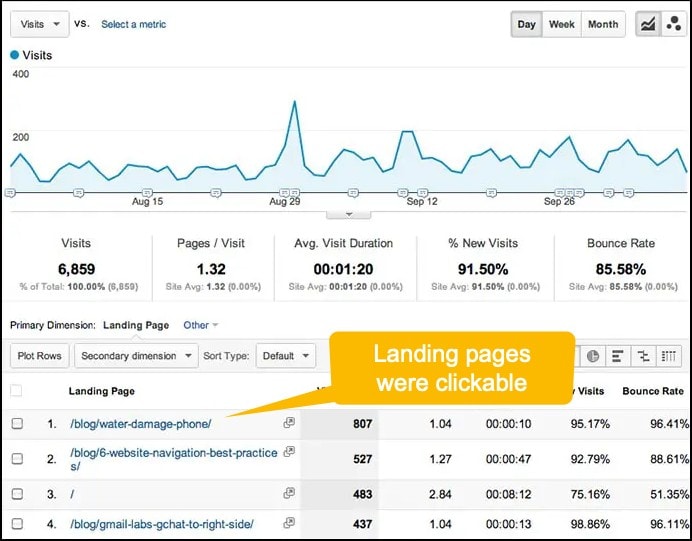
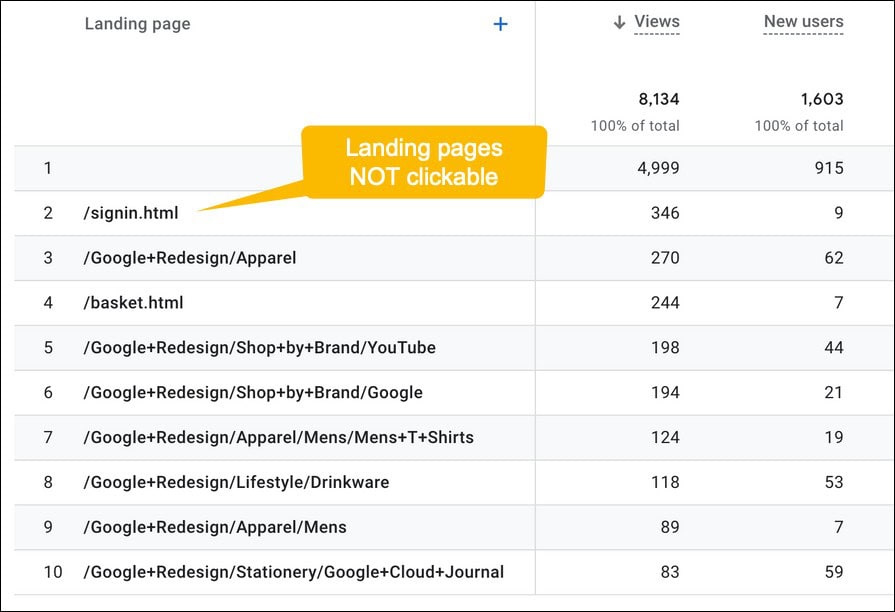
With the transition to Google Analytics GA4, users have lost a convenient feature that allows them to click URLs directly within the landing page report. In the previous version of Google Analytics, this functionality made navigating between analytics data and the corresponding website pages easier. Now, users must manually copy and paste URLs into a new browser tab, adding unnecessary steps to the process. To address this issue, we’ve developed a Google Chrome extension that brings back clickable URLs in GA4, streamlining your workflow and enhancing productivity.
Google Analytics (Old Version)
Google Analytics (New GA4 Version)
Universal Analytics Versus GA4: What Changed
Universal Analytics and GA4 track users in fundamentally different ways, and that change is why landing page URLs stopped behaving the same. GA4 replaced the session and pageview model with an event and parameter model, while Universal Analytics kept the old fixed structure. Rivals such as Amplitude, Mixpanel, and PostHog now pitch against these deeper GA4 features.
For a project manager, the reporting consequence is clear: the old version gave instant landing page and content reports, while GA4 requires you to build explorations before you get the equivalent view. That extra build step is why daily checks feel slower, and it is the exact gap the Page Opener extension closes when you just need a clickable row.
The core differences between Universal Analytics and GA4 break down this way:
| Aspect | Universal Analytics | GA4 |
|---|---|---|
| Data Model | Session and pageview-based | Event and parameter-based |
| Cross-Device Tracking | Cookie-based per browser | User ID and Google Signals across platforms |
| Report Types | Fixed standard reports and segments | Explorations and customizable dashboards |
| Predictive Metrics | Not available | Purchase, churn, and revenue probability (Digital Applied finds only 34% enabled them) |
The Solution: GA4 Page Opener Google Chrome Extension
To fix this gap, we built a free Google Chrome extension that puts clickable links back into GA4. When you install it and map your domain, every landing page URL in the reports becomes a real link again. The GA4 measurement protocol is not used; the extension works entirely inside the interface, so setup stays simple.
Once you map a domain, every row that holds a matching URL turns into a working link. That covers engagement and acquisition views alike, and the popup stores each domain so it keeps working on later visits to the same property. You spend your time reading the page behind each number instead of rebuilding addresses by hand, which is the real time saved.
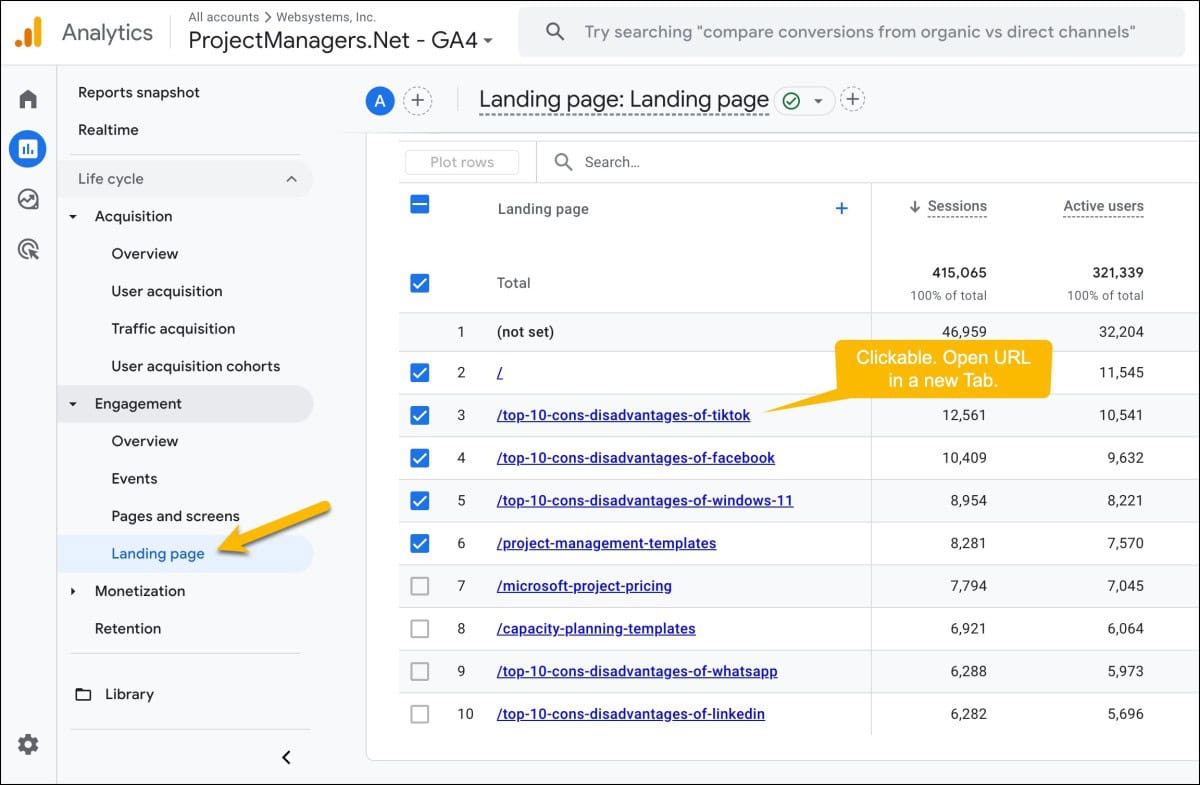
The extension adds clickable links across each of these report sections:
- Reports – Engagement – Pages and screens
- Reports – Engagement – Landing page (see image below)
- Reports – Acquisition – Overview
How Does it Work?
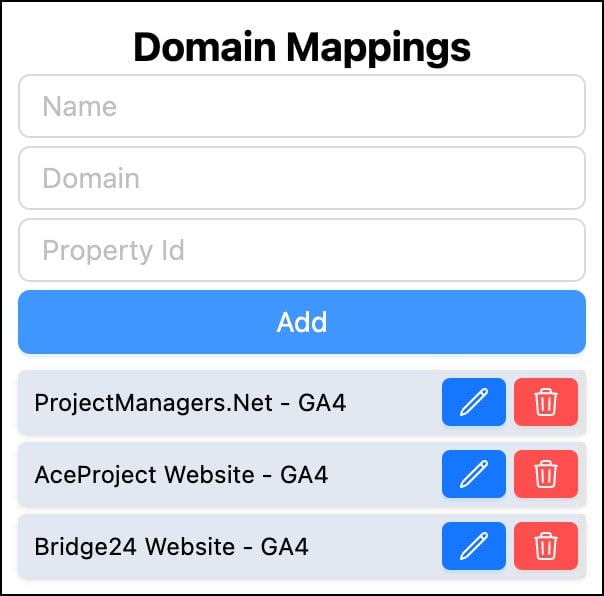
The extension is genuinely easy to use, and the whole setup takes less than a minute per site. After you install it from the Chrome Web Store, a small icon appears next to your browser address bar. Click that icon to open the Domain Mappings pop-up, and you are ready to tell GA4 where each of your pages actually lives on the web.
Set up your clickable links by following these simple steps:
Steps:
- Install the GA4 Page Opener Chrome Extension
- Open Google Analytics and select the website you want to have clickable links
- Click the extension icon in the taskbar to display the Domain Mappings pop-up
- The Name field will be filled; simply enter the full domain name (ex: projectmanagers.net)
- Click the Add button
- Refresh your Google Analytics tab. Your URLs are now clickable
- Repeat this process for each domain for which you want to have clickable links
GA4 Migration Mistakes to Avoid
Many teams migrate to GA4 without addressing core setup requirements, retaining default events and losing the custom data they once relied on. Notably, 62% of Fortune 500 companies use GA4 as their primary analytics tool, yet shallow setups remain widespread even among them. Avoiding these common pitfalls from the outset ensures your reports stay accurate and trustworthy from day one.
Watch for these common GA4 migration mistakes when you start:
- Migrating Without a Plan: Teams that switch before reading the documentation usually lose historical data and custom dashboards. Follow a complete GA4 guide and map your key events before you cut over.
- Never Verifying Your Data: After the switch, confirm that the new property counts the same sessions and conversions as the old one. Many teams accept silent gaps and then report wrong numbers to leadership.
- Ignoring Cross-Device Tracking: GA4 needs a User ID plus Google Signals enabled to stitch one visitor across phone and laptop. Without them, your audience count splits, and every channel looks smaller than it is.
- Relying on Default Events: The average setup uses only 12 of over 40 event types, so teams never measure the actions that decide revenue. Map key events and conversions early.
- Skipping the BigQuery Export: Connecting GA4 to BigQuery streams raw events into a warehouse you can query freely, and this free link draws teams toward GA4. Set it up while your property is still new.
GA4 Page Opener Video
Watch this short walkthrough that shows the extension in action.
Conclusion
The GA4 Page Opener extension restores the simple workflow that the transition removed. Landing page URLs become clickable again, so you can move from a report row to the live page without copying and pasting. Installing it takes seconds, and mapping a few domains is all you need. For anyone who works in GA4 daily, this small tool saves real time and cuts everyday frustration.
Set up the extension once, and your links stay active across pages and rows. The popup lets you add as many domains as you need, and the setup follows the same pattern every time. When you review acquisition or engagement reports, you land on the exact page behind each number. Browser-based tools restore what the platform removed, and you get the best of both versions.
FAQs
Do I need to give User Permissions to my data?
No. The extension does not touch the Analytics API or ask for any permissions to your account. It simply inserts the domain you provide into the spots where GA4 expects to find it, so every URL displays as a clickable link. Your data stays private, and no information is sent anywhere beyond your own browser.
How many websites can I enter with the popup?
You can enter as many websites as you like. There is no hard limit on the number of domains you map, which makes the extension useful for agencies and teams that manage many properties. Each domain you add becomes immediately clickable, and you can return to the popup at any time to add more, update an address, or remove one you no longer need.
Is it limited to 10 rows per page? Or to page #1 only?
No, it is not limited that way. If you change the rows per page from 10 to 25, all 25 rows become clickable. The same applies when you move to page two, page three, or beyond, because the links follow whatever rows are currently loaded. The extension makes every URL in the report clickable, no matter which page you are viewing.
Why do I need to input each domain to make my URLs clickable?
GA4 doesn’t provide the domain URL in the Reports section of Google Analytics; only the Property Name and Property ID are available. The popup extension lets you map your domain URL to the corresponding Property Name and ID.
Is the GA4 Page Opener extension free to use?
Yes, the extension is completely free. You can install it from the Chrome Web Store without paying anything or creating an account, and there are no subscriptions or hidden fees tied to its use. The tool was built to restore a feature that Google removed, and the developer keeps it free for everyone. Add as many domains as you like at no cost.
Suggested articles:
- Data-Driven Project Management: Web Analytics Integration
- Advanced Microsoft Power Apps Development Techniques
- YNotes – My YouTube Notes Organizer

Daniel Raymond, a project manager with over 20 years of experience, is the former CEO of a successful software company called Websystems. With a strong background in managing complex projects, he applied his expertise to develop AceProject.com and Bridge24.com, innovative project management tools designed to streamline processes and improve productivity. Throughout his career, Daniel has consistently demonstrated a commitment to excellence and a passion for empowering teams to achieve their goals.