
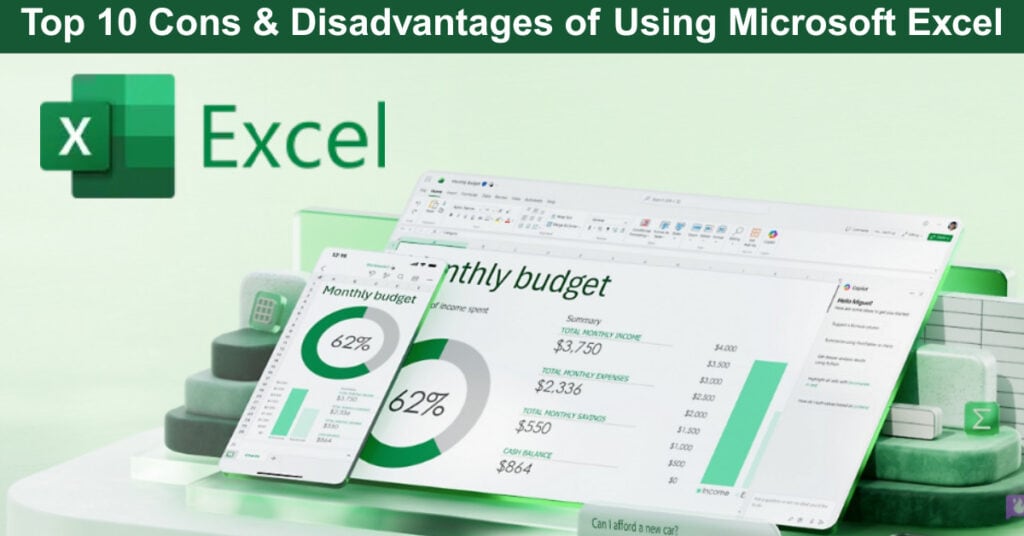
Microsoft Excel has dominated the spreadsheet landscape for decades, evolving from a simple data organization tool into a sophisticated platform powered by AI capabilities like Microsoft Copilot. With features ranging from basic calculations to advanced data analysis using Python integration, collaborative cloud-based workflows, and intelligent formula assistance, Excel presents itself as a comprehensive solution for individuals and businesses alike. Microsoft actively promotes these capabilities across multiple subscription tiers, emphasizing real-time collaboration, AI-powered insights, and seamless integration with the broader Microsoft 365 ecosystem.
However, beneath the polished marketing and feature announcements lies a critical reality that users must understand: Excel’s limitations can significantly impact your workflows, data integrity, and decision-making processes. While Microsoft showcases Copilot’s formula assistance and Python integration, these advanced features cannot overcome fundamental architectural constraints that have plagued Excel for years. Understanding these disadvantages is essential—not to dismiss Excel entirely, but to make informed decisions about when it’s the right tool and when alternatives might better serve your needs.
What is Microsoft Excel?
Microsoft Excel is no longer just a spreadsheet application. Today, it’s a hybrid of traditional spreadsheet power, cloud collaboration, automation, and AI-assisted data analysis, all built into the Microsoft 365 ecosystem. At its foundation, Excel still does what made it indispensable for decades: organizing data, running calculations, and turning numbers into insights. But modern Excel goes far beyond rows and formulas. With Microsoft Copilot, Python integration, dynamic arrays, and real-time collaboration, Excel now overlaps with entry-level data analytics and business intelligence tools—without losing its familiar interface.
Excel is widely used across finance, accounting, operations, marketing, education, engineering, and small businesses because it scales. You can manage a simple budget, track inventory, forecast revenue, analyze customer behavior, or model financial scenarios involving hundreds of thousands of rows—all within the same tool.
Key Features of Microsoft Excel
- Spreadsheet-Based Data Management: Organize, clean, and structure data efficiently using rows, columns, tables, and dynamic ranges.
- Modern Formulas and Functions: Includes advanced functions such as XLOOKUP, dynamic arrays, LET, LAMBDA, TEXTSPLIT, and enhanced logical, financial, and statistical formulas.
- PivotTables and Data Modeling: Quickly summarize, filter, and analyze large datasets without writing code.
- Charts and Data Visualization: Create business-ready charts, dashboards, and trend visuals with improved formatting and automation options.
- Microsoft Copilot Integration: AI-powered assistance that helps explain data, suggest formulas, identify trends, and generate insights using natural language prompts.
- Python in Excel: Run Python code directly inside Excel for advanced analytics, forecasting, and data science workflows—without leaving the spreadsheet.
- Real-Time Collaboration: Share spreadsheets, co-author live, track changes, and manage versions through Excel for the web and OneDrive.
- Automation and Customization: Use macros, VBA, Office Scripts, and Power Automate to automate repetitive tasks and business workflows.
- Cross-Platform Access: Available on Windows, macOS, web, iOS, and Android, allowing consistent access across devices.
- Microsoft 365 Ecosystem Integration: Works seamlessly with Word, PowerPoint, Outlook, Teams, Power BI, and OneDrive for end-to-end productivity workflows.
Real-Life Example: A modern accountant doesn’t just calculate totals. They use Excel to pull data from cloud sources, forecast cash flow with AI-assisted suggestions, model scenarios using PivotTables, run Python-based analysis for deeper insights, and share live reports with stakeholders in real time.
Microsoft Excel: Top 10 Cons & Disadvantages
This section explores the top ten cons of using Microsoft Excel, highlighting the challenges users face when dealing with large datasets, complex calculations, collaboration, security, and data governance—even with modern features like AI analysis and Copilot.
1. Vulnerability to Human Error and High Error Rates
Excel remains highly susceptible to human error. Despite improvements such as dynamic arrays, structured tables, and Copilot-assisted formula suggestions, Excel still allows users to overwrite formulas, reference the wrong ranges, or input incorrect data without enforcement. AI features can assist, but they do not prevent mistakes. This fundamental flaw in design means that even minor slips can lead to significant, cascading errors across complex financial models, project schedules, or data analysis reports, undermining the trustworthiness of the entire workbook.
How this issue often escalates:
- Formula errors silently propagate across entire worksheets
- Manual overrides break logic without triggering alerts
- AI-suggested formulas can still be accepted blindly without verification
Real-Life Example: A financial analyst used Copilot to help generate a complex formula but failed to notice an incorrect range reference. Excel accepted the formula without warning, resulting in a 15% underestimation of project costs that was discovered only during final reconciliation. The error had propagated through several linked summary sheets before the discrepancy was found, requiring a significant effort to trace and correct.
Solution: Introduce mandatory formula locking, stronger default validation rules, and enforced audit checks that cannot be bypassed by users. AI features should be upgraded to proactively flag high-risk formulas or unusual data inputs instead of merely suggesting them for blind acceptance.
2. Data Volume and Performance Limitations
Excel still struggles with large datasets. Even with Power Query, Power Pivot, and Python in Excel, performance issues appear long before hitting the 1,048,576-row limit—especially when workbooks contain heavy formulas, multiple PivotTables, or AI-driven analysis layers. The reliance on in-memory processing for all data, even pre-processed records, means that complex analysis on millions of rows can quickly consume system resources, leading to frustrating slowdowns and crashes. Users are often forced to work with filtered or segmented data, compromising the completeness of their analysis.
How this issue often escalates:
- Workbooks become slow, unresponsive, or crash during recalculation
- Files grow excessively large and risk corruption
- Users split data across multiple files, increasing inconsistency
Real-Life Example: A logistics manager exporting millions of inventory records relied on Power Query to preprocess data. Despite this, Excel still required the dataset to be loaded into memory, forcing the manager to split files and manually reconcile summaries across workbooks. The process was slow and carried the high risk of human error during manual data consolidation steps.
Solution: Excel should default to off-grid data processing for large datasets and integrate more seamlessly with cloud data warehouses (like Fabric/Synapse). This would allow analysis to occur directly against cloud data without importing all data into the local worksheet itself.
3. Collaboration and Version Control Failures
While Excel Online supports co-authoring and cloud storage via OneDrive, collaboration remains fragile—especially for desktop users. There is still no robust, cell-level audit trail or true version branching, even with Microsoft 365 integration. This lack of granular tracking and management makes it difficult for multiple users to confidently edit complex models simultaneously. Conflicts are often resolved by simple overwrites, meaning changes can be lost or incorrectly merged without the ability to easily trace who did what, when, and why across the entire sheet’s logic.
How this issue often escalates:
- Conflicting edits overwrite changes without clear attribution
- Version history lacks meaningful comparison tools
- Desktop users experience sync delays or merge conflicts
Real-Life Example: Two team members edited a shared Excel file with Copilot-enabled suggestions turned on. Conflicting formula changes caused a silent overwrite, and the version history could not clearly identify which change introduced the error. This forced a time-consuming manual comparison against an older, known-good backup file to restore the correct logic.
Solution: Introduce database-style change logs, clear conflict resolution tools, and true version branching that tracks every cell change with user attribution. This system should provide meaningful comparison tools for reviewing historical versions and changes.
4. Inadequate Security for Sensitive Data
Excel files remain inherently insecure for sensitive information. Although Microsoft 365 offers file-level encryption and cloud security, once an Excel file is downloaded or shared externally, protection largely disappears. Copilot and AI features do not address this risk. The common use of trivial password protection, which is easily bypassed by readily available tools, means that confidential data like payroll, client lists, or financial forecasts are poorly secured once they leave the controlled cloud environment. This is a critical governance and compliance risk.
How this issue often escalates:
- Password protection is easily bypassed
- Files can be copied, forwarded, or stored locally without controls
- No role-based access at the cell level
Real-Life Example: A consultant emailed a password-protected Excel model containing confidential data to a client. After a breach at the client’s end, investigators confirmed the password protection was trivial to bypass, exposing sensitive client information and causing a compliance violation.
Solution: Implement enforced encryption, role-based access controls, and audit trails tied to Microsoft accounts. These restrictions must persist and be enforced even after files are downloaded locally or shared externally to maintain data integrity.
5. Limited Automation and Integration Capabilities
Excel automation still relies heavily on VBA, which is outdated, hard to audit, and often disabled by IT departments. While Office Scripts, Power Automate, and Copilot help, they do not fully replace robust API-driven workflows. The lack of standardized, native connectivity to enterprise systems means that business processes frequently involve manual “swivel-chair” data transfers. This reliance on legacy or disparate automation methods limits scalability and introduces points of failure, preventing seamless, real-time data flow between Excel and core business applications.
How this issue often escalates:
- Manual data imports remain common
- VBA macros pose security risks
- Automation breaks when data sources change
Real-Life Example: A sales team used Copilot to summarize CRM exports but still relied on daily manual data exports because Excel lacked a stable, real-time CRM integration. This manual step consumed two hours daily and resulted in reports that were always at least one day out of date, impacting timely decision-making.
Solution: Expand native API connectivity for real-time data flow, reduce reliance on outdated VBA, and provide standardized automation templates for common enterprise systems. This will facilitate scalable and secure data handling processes.
6. Unstructured Data Handling Challenges
Excel is fundamentally built for structured data. Even with Power Query and Python in Excel, working with JSON, XML, or log files remains complex and inaccessible to non-technical users. The process of transforming unstructured or semi-structured data into a usable table format requires advanced knowledge of Power Query M formulas or Python scripting. This requirement places a high technical barrier on users who simply need to analyze data from modern APIs or web sources, forcing them to rely on specialized tools or IT support for basic data preparation.
How this issue often escalates:
- Manual transformations introduce errors
- Complex Power Query steps are difficult to maintain
- AI explanations do not simplify underlying structure issues
Real-Life Example: A marketing analyst spent days flattening JSON data received from an advertising API using complex transformations in Power Query, despite Copilot explaining the JSON structure. A dedicated BI tool completed the same task in minutes, highlighting the steep learning curve and inefficiency of the Excel approach.
Solution: Provide intuitive, visual tools for parsing and mapping unstructured data (like JSON or XML) without requiring scripting or advanced Power Query transformations. Users should be able to map keys to columns easily.
7. Inflexible Data Management Features
Despite improvements like Excel Tables and dynamic arrays, many core data management behaviors remain rigid. PivotTables still require manual refreshes, and inconsistent data formatting can break sorting and filtering. The expectation that users must manually initiate updates for common reporting tools like PivotTables and charts is a major source of error. Furthermore, Excel’s sensitivity to minor formatting inconsistencies (like extra spaces or mixed data types) can silently invalidate critical filtering or sorting operations.
How this issue often escalates:
- Reports omit newly added data
- Users forget to refresh PivotTables
- AI-generated insights are based on outdated data
Real-Life Example: An accountant relied on Copilot-generated insights from a PivotTable that had not been refreshed after the source data was updated, leading to incorrect weekly reporting. The firm had to issue a retraction after discovering that the flawed data was used for a critical financial projection.
Solution: Enable automatic data and PivotTable refresh by default whenever a connected source is updated. Additionally, implement clear and non-dismissible flags that immediately alert users when analyses are based on stale data.
8. Limited Data Visualization and Interactive Dashboards
Excel’s visualization tools remain basic. While Copilot can suggest charts, the resulting dashboards are largely static and lack true interactivity compared to dedicated BI platforms. Excel excels at presenting static charts based on filtered data, but struggles to create dynamic, drill-down dashboards that allow users to interact with the data and explore different dimensions in real-time. This forces analysts to manually generate multiple static views instead of building a single, flexible, and exploratory data interface.
How this issue often escalates:
- Users cannot drill down dynamically
- Dashboards require manual rebuilding
- Real-time updates are limited
Real-Life Example: A marketing director needed interactive drill-down dashboards to analyze campaign performance by region, product, and channel. Excel’s charts proved insufficient for this level of detail, forcing a costly and time-consuming migration to Power BI.
Solution: Introduce native, fully interactive visualization capabilities within Excel itself. This must include dynamic filtering, native drill-down functionality, and real-time updating visuals comparable to dedicated BI tools.
9. Steep Learning Curve for Complex Tasks
Advanced Excel remains difficult to master. AI assistance helps explain features, but complex tasks like statistical modeling, Power Query transformations, and financial modeling still require deep expertise. The jump from using basic formulas to implementing advanced analytical techniques or building robust, auditable models is significant. Without specialized training, users frequently misuse or incorrectly apply advanced tools, leading to models that appear correct but are fundamentally flawed, undermining the value of the analysis.
How this issue often escalates:
- Users misuse advanced tools
- AI-generated steps are misunderstood
- Productivity drops for non-experts
Real-Life Example: An analyst used Copilot to generate a regression model but struggled to validate the underlying statistical assumptions. This led to incorrect conclusions about the correlation between two datasets, requiring a senior data scientist to redo the entire analysis.
Solution: Expand guided, step-by-step workflows and enforce validation checks for advanced analytical features. These guides must ensure assumptions are correctly stated, and model outputs are interpreted accurately by non-expert users.
10. Difficulty in Auditing and Data Integrity
Excel lacks strong data governance. Even with version history and AI explanations, spreadsheets remain difficult to audit due to hidden formulas, hard-coded values, and scattered logic. The sheer lack of enforcement for documentation, coupled with the ease of hiding critical cells or logic, means that complex Excel models are often black boxes. When an error is found, tracing the calculation back to its source assumption or input is incredibly difficult, making compliance reviews or model validation an almost impossible task.
How this issue often escalates:
- Auditors cannot trace calculations
- Data integrity is compromised
- Models must be rebuilt from scratch
Real-Life Example: During a financial audit, a tax model built in Excel was rejected because its assumptions and calculations could not be clearly traced and documented—even with Copilot explanations. The firm was forced to rebuild the model in a dedicated financial system, incurring extra costs.
Solution: Introduce a dedicated, enforced audit mode that tracks and locks assumptions, requires formula documentation, and visually maps calculation logic across sheets to ensure complete transparency for governance.
How Could These Disadvantages Be Overcome?
A multifaceted approach focusing on software enhancement and user education is necessary to overcome the limitations of Microsoft Excel. This approach should make Excel more user-friendly, versatile, and efficient in handling complex data management tasks, directly addressing issues like error rates, poor collaboration, and limited capabilities.
Here are five key examples of how these improvements could be implemented, with each explanation limited to approximately 40 words:
- Integrate Advanced Version Control: Implement cell-level version control, similar to software development systems, that tracks every edit with user attribution. This system must facilitate easy, traceable merging and immediately flag conflicting changes to prevent silent data overwrites in shared workbooks.
- Standardize Features Across Versions: Ensure complete consistency in formulas, functions, and the core user interface across all Excel versions—desktop, web, and mobile. This standardization is crucial to maintain file integrity and prevent calculation errors when files move between different user environments or platforms.
- Enhance Collaboration Tools with Auditing: Develop database-style collaboration with real-time change logs for every cell. Implement clear, proactive conflict resolution tools and enforced audit trails, improving accountability and data integrity in complex, simultaneously edited team models.
- Expand Native Data Visualization Capabilities: Integrate native, fully interactive visualization tools, allowing users to create dynamic charts and dashboards with built-in drill-down functionality. This reduces the need for costly external BI applications to explore and present data effectively.
- Improve Accessibility and Learning Resources: Offer intuitive navigation, guided workflows, and proactive AI assistance (like Copilot) for complex features, such as Power Query or statistical analysis. This lowers the steep learning curve for advanced modeling tasks for all users.
To learn more about the latest updates to Excel’s collaborative features, you can watch this video about new features in Microsoft Excel.
Top 5 Best Alternatives to Microsoft Excel
While Microsoft Excel is a dominant player in spreadsheet software, several alternatives in the market offer unique features catering to different user needs. These alternatives have emerged as strong competitors, providing functionalities that address some of the limitations of Excel. They range from offering more intuitive user interfaces and better collaboration features to advanced data analysis tools not native to Excel. The choice of an alternative often depends on the specific requirements of a task, such as the need for real-time collaboration or advanced data visualization.
Top 5 alternatives to Microsoft Excel include:
- Google Sheets: Known for its real-time collaboration features and cloud-based functionality.
- LibreOffice Calc: A free, open-source alternative with a similar interface to Excel.
- Apple Numbers: Offers a clean, intuitive interface, especially for Mac users.
- Zoho Sheet: Provides robust cloud-based spreadsheet solutions with collaboration tools.
- Smartsheet: Combines spreadsheet features with project management tools.
An example of an alternative in action is a small business using Google Sheets for its accounting. It benefits from its real-time collaboration feature, allowing multiple team members to work on the financial data simultaneously.
Conclusion
While Microsoft Excel remains the ubiquitous standard for quick data analysis and personal use, its inherent architectural limitations—particularly concerning massive data volume, collaborative integrity, and data security—are becoming increasingly difficult to ignore in the age of cloud computing and AI. The platform’s susceptibility to human error and its difficulty in handling complex, unstructured data necessitate significant evolution.
To maintain its relevance as a core enterprise tool, Excel must transition from being a simple file-based grid to a platform that enforces stricter data governance, integrates true database-style auditing and version control, and leverages cloud processing for scalability. Overcoming these fundamental cons requires Microsoft to prioritize robustness and security over traditional simplicity.
Suggested articles:
- Top 10 Cons or Disadvantages of Using Microsoft Planner Software
- Top 10 Cons or Disadvantages of Microsoft Teams
- Top 10 Cons & Disadvantages of Microsoft Power BI

Daniel Raymond, a project manager with over 20 years of experience, is the former CEO of a successful software company called Websystems. With a strong background in managing complex projects, he applied his expertise to develop AceProject.com and Bridge24.com, innovative project management tools designed to streamline processes and improve productivity. Throughout his career, Daniel has consistently demonstrated a commitment to excellence and a passion for empowering teams to achieve their goals.