
Microsoft Planner has become the central task management tool in the Microsoft 365 ecosystem, consolidating features from the retired Project for the web, Microsoft To Do, and the original Planner into one unified experience. As teams manage more work across multiple plans and channels, the ability to quickly surface overdue tasks has never been more important. Without a reliable method for identifying late work, project health can deteriorate quietly before anyone notices.
This article walks you through the most effective methods for finding late tasks in Microsoft Planner, from simple built-in filters to grouping strategies, cross-plan views, and Power Automate automation. Whether you manage a single team plan or oversee work across multiple projects, these techniques give you consistent, repeatable visibility into overdue items. Applying them regularly is one of the simplest habits a project manager can build for keeping delivery on track.
Understanding Late Tasks in Microsoft Planner
In Microsoft Planner, a task is considered late when its due date has passed, and it has not been marked complete. Planner tracks this automatically based on the due date field assigned to each task. No additional configuration is required for the late status to appear, provided due dates are consistently set when tasks are created.
This distinction matters because late task visibility depends entirely on due date discipline across the team. Tasks without due dates will never surface in a late filter, regardless of how overdue they may be in practice. Establishing a team norm of always assigning due dates when creating tasks is, therefore, a prerequisite for any of the filtering methods described in this article to work reliably.
Using the Built-In Filter for Late Tasks
The fastest way to isolate late tasks in Microsoft Planner is through the built-in Filter menu available in every plan view. This approach requires no setup, works in both Board and Grid views, and can be combined with additional criteria to narrow results further. It is the right starting point for any ad hoc task status check.
Here is how to apply the late task filter in any plan:
- Open the relevant plan in Microsoft Planner via the web or Microsoft Teams.
- Click the Filter icon at the top right of the plan view.
- Scroll to the Due Date section and check the Late option.
- Review the filtered results, which will display all incomplete tasks past their due date.
- Click Clear in the filter menu to return to the full task list when finished.
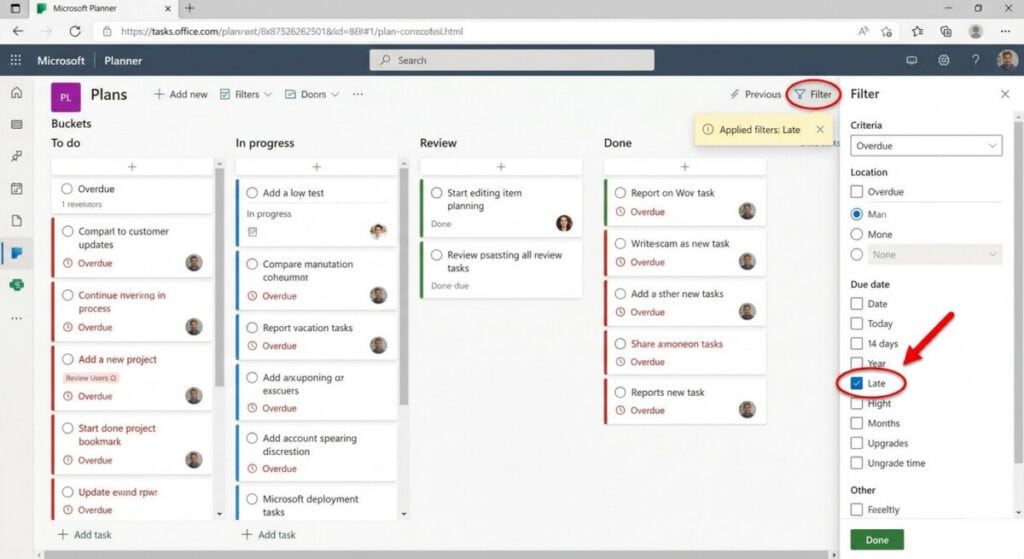
Filter menu with the Late option selected under Due Date
The built-in filter also supports combining criteria in a single pass, which makes it significantly more useful than a single-condition search. The following combinations are the most practical for status reviews:
- Late and Priority: Select Urgent or Important alongside the Late filter to surface the highest-risk overdue tasks, helping you prioritize which items need immediate escalation.
- Late and Assignee: Filter by a specific team member in addition to Late to generate a per-person overdue task list, which is particularly useful for one-on-one check-ins or workload conversations.
- Late and Not Started: Combining the Late filter with the Not Started progress status identifies tasks that have not been touched at all, representing the highest risk items in any schedule review.
Grouping Tasks by Due Date
Changing how tasks are grouped in the Board view is an effective alternative to filtering, especially when you want to see late items in the context of the broader schedule. This method provides a visual layout that shows overdue work alongside upcoming tasks, giving a fuller picture of project pacing.
To group tasks by due date, follow these steps:
- Open the plan in Board view.
- Select the Group By dropdown menu at the top right of the board.
- Choose the due date from the available options.
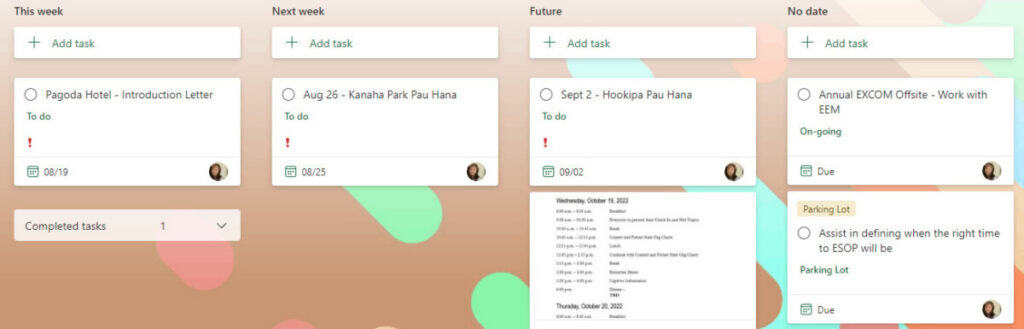
Board view grouped by Due Date
When grouped by Due Date, Planner creates distinct columns for Late, Today, Tomorrow, This Week, Next Week, and Future. As of the March 2025 update, all due date category columns are displayed regardless of whether tasks exist in them, giving a complete timeline overview rather than showing only populated buckets. This is a notable improvement over the previous behavior, which only rendered columns containing at least one task.
Analyzing Late Tasks Using the Charts View
The Charts tab in Microsoft Planner provides a high-level visual summary of a plan’s health and is well-suited for reporting and stakeholder updates. It does not replace the filter view for granular task management, but it offers a quick snapshot that communicates schedule performance at a glance.
To access the Charts view and identify late tasks, follow these steps:
- Open Charts View: Click the Charts tab at the top of the plan to switch from the Board or Grid view to the visual dashboard.
- Review the Status Chart: Locate the Status bar chart, where the red segment represents all tasks currently flagged as late within the plan.
- Filter Interactively: Click the red Late segment in the Status chart to automatically filter the task list on the right side of the screen to show only those specific overdue items.
- Use for Reporting: Export or screenshot the Charts view for use in status meeting decks, as it provides an immediately readable breakdown of task health across the full plan.
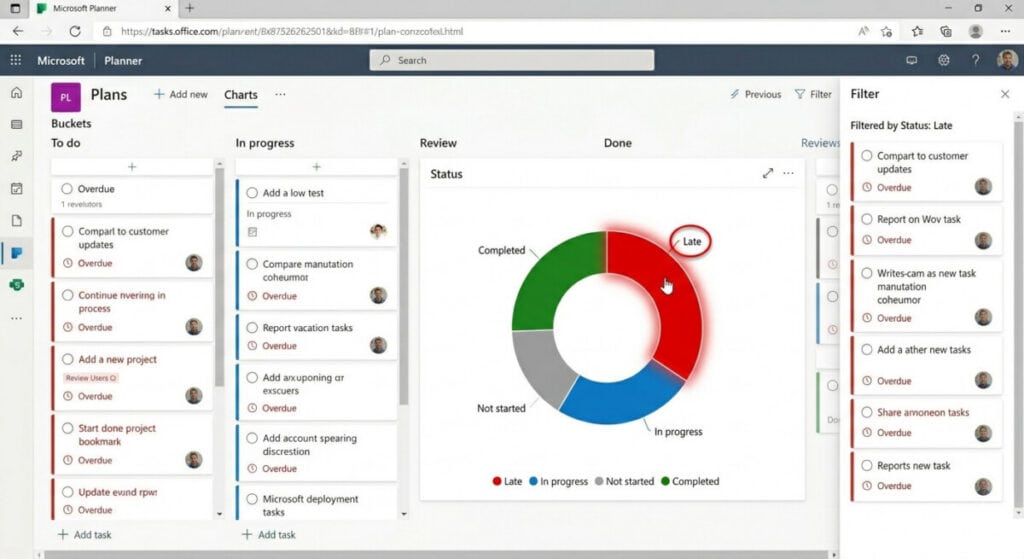
Charts tab showing the Status chart with the Late segment highlighted
Finding Late Tasks Across All Plans with My Tasks
When you are responsible for work across multiple plans, checking each plan individually for late tasks is time-consuming and easy to forget. The My Tasks view in Microsoft Planner consolidates all tasks assigned to you from every plan into a single, filterable list. This makes it the most efficient starting point for a personal overdue task review.
To use My Tasks to find late work, follow these steps:
- Select My Tasks from the left-hand navigation pane in Microsoft Planner or the Planner app in Teams.
- Click the Filter icon in the top right of the My Tasks view.
- Select Late from the Due Date section to show only overdue items across all plans.
- Optionally group the results by Plan to see which projects are contributing the most late tasks.
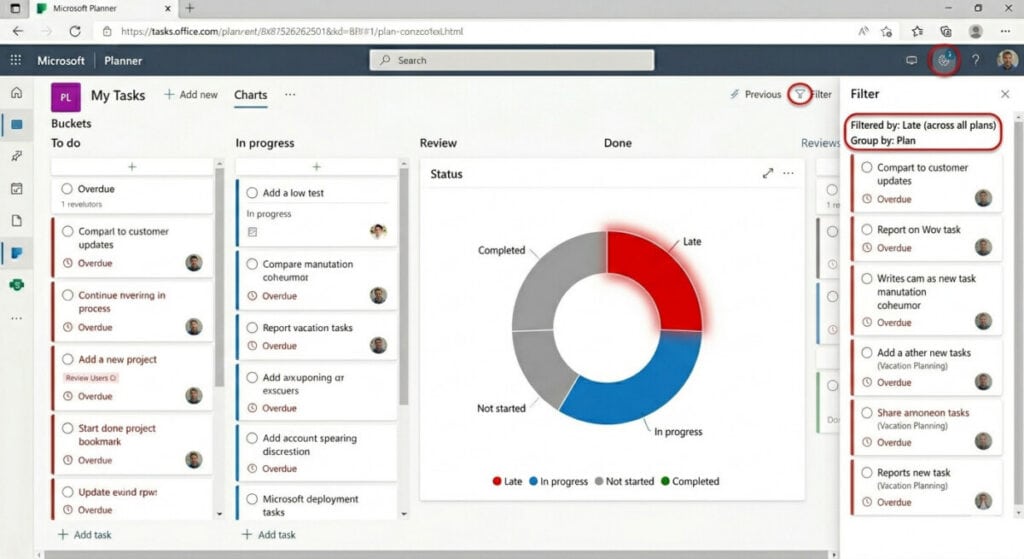
My Tasks view with the Late filter applied, showing tasks from multiple plans
The My Tasks view also benefits from a January 2025 update that removed the default filter hiding completed tasks. You now have full control over task visibility in this view, meaning you can choose exactly which task states to show or hide without the filter resetting each session. For premium plan users, filters applied in My Tasks persist across sessions, so your preferred overdue task view is maintained each time you return.
Persisting Filters in Premium Plans
Users on Planner Premium plans, available through Planner and Project Plan 3 or Plan 5 licenses, have access to persistent filter settings introduced in the March 2025 update. This feature addresses one of the most common friction points in recurring status reviews, which is the need to reapply the same filter configuration every session.
With persistent filters enabled, any filter combination you apply in a premium plan, including a Late plus Not Started combination or a Late plus specific assignee view, will remain active after you log out and back in. This makes the filter behave more like a saved view than a temporary display option, and removes the repetitive setup step from every status review cycle. Persistent filters apply to both the Board view and Grid view in premium plans, and are stored per user rather than per plan.
Automating Late Task Alerts with Power Automate
For teams that need proactive notification rather than manual filter checks, Power Automate provides a way to build automated overdue task alerts. This approach is especially valuable for project managers overseeing large plans where manual review is not practical daily.
The following steps outline a basic scheduled flow for sending late task notifications:
- Go to make.powerautomate.com and create a new Scheduled Cloud Flow.
- Set the trigger frequency, such as every Monday morning, to run the check on a regular cycle.
- Add a List Tasks action using the Planner connector and select the relevant plan.
- Add a condition that evaluates whether the task due date is earlier than the current date using the utcNow() expression, and whether the task is not marked complete.
- Add a notification action, such as Post a message in Teams or Send an email, to alert the relevant assignee or channel.
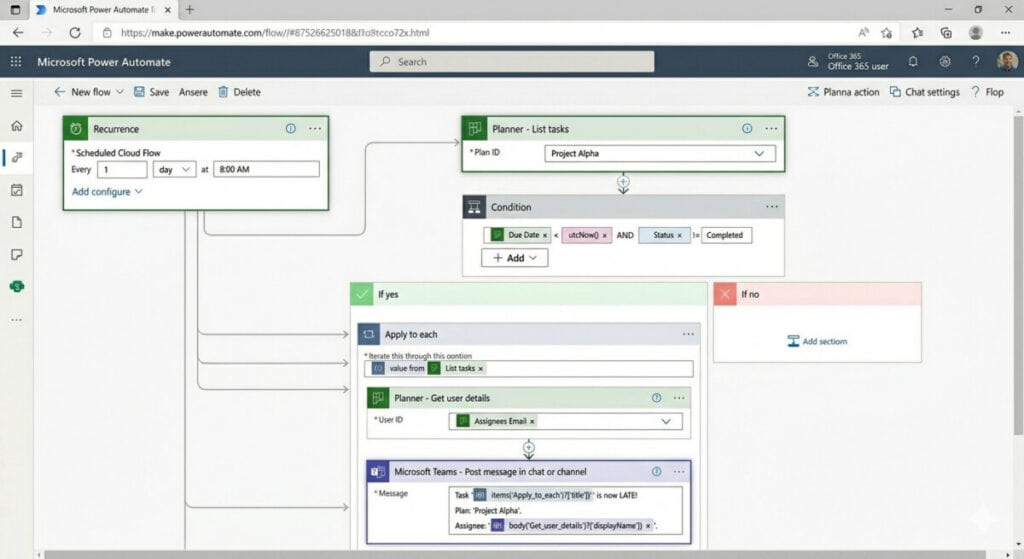
Power Automate flow canvas
A well-structured automation removes the dependency on manual review and ensures overdue tasks are surfaced consistently, regardless of whether anyone actively checks the plan. For plans with assigned team members, flows can be configured to send individual alerts to each assignee rather than a single channel post, increasing personal accountability for late items.
Best Practices for Managing Late Tasks in Planner
Filters and automation are only as useful as the underlying data quality in the plan. Applying the following practices consistently will ensure that late task visibility is accurate and actionable across the team. Maintaining good task hygiene across the plan is what makes every method in this article work reliably:
- Always Assign Due Dates: Tasks without due dates will never appear in a late filter, making them invisible to any schedule review method. Establish a team norm that every task must have a due date before it is assigned.
- Use Labels for Urgency: Apply color-coded labels such as Urgent or Escalated to late tasks requiring immediate attention, which allows you to combine a label filter with the late filter for a prioritized action list.
- Review Late Tasks Regularly: Schedule a recurring filter review at a fixed cadence, such as every Monday, rather than checking reactively. Consistent review habits prevent small slippages from compounding into larger task-schedule problems.
- Clear Filters After Review: Always click Clear in the filter menu after a status session to return the view to its default state, ensuring other team members do not open the plan and see a pre-filtered view that omits tasks.
- Upgrade to Premium for Persistence: If your team runs frequent status reviews and finds filter reapplication disruptive, upgrading to a Planner Premium license unlocks persistent filter settings that maintain your preferred view across every session automatically.
Conclusion
Microsoft Planner offers multiple overlapping methods for identifying late tasks, from the immediate built-in filter to grouped board views, the cross-plan My Tasks experience, and full automation through Power Automate. Each method serves a different review context, and combining them across daily, weekly, and reporting workflows gives project managers comprehensive visibility into schedule health without significant manual effort.
The key to making late task visibility work in practice is consistency, both in how the team creates tasks with due dates and in how regularly filters are applied during review cycles. As Planner continues to evolve with persistent filters, AI-powered notifications through the Project Manager agent, and deeper Teams integration, the tools available for proactive schedule management will only become more capable and easier to use.
FAQs
What makes a task appear as late in Microsoft Planner?
A task is flagged as late in Microsoft Planner when its due date has passed, and it has not been marked as complete. The late status is assigned automatically based on the due date field. Tasks without a due date will never appear in a late filter, regardless of how long they have been open.
Can I filter for late tasks across multiple plans at once?
Yes. The My Tasks view in Microsoft Planner consolidates tasks assigned to you from every plan you are part of. Applying the Late filter within My Tasks surfaces all overdue tasks across all plans simultaneously, and you can group the results by plan to see which projects are contributing the most late work.
Do filter settings save automatically in Microsoft Planner?
Filter persistence depends on your license. Users on Planner Premium plans benefit from a March 2025 update that saves filter settings across sessions, so your preferred view is maintained each time you return. Users on basic plans need to reapply filters manually each session.
Can I automate late task notifications in Microsoft Planner?
Yes. Microsoft Power Automate integrates with Planner and can be used to build scheduled flows that check for overdue tasks and send alerts via Teams messages or email. Flows can be configured to run at a set frequency and to notify individual task assignees rather than a shared channel.
What is the difference between late tasks and slipping tasks in Planner?
In Microsoft Planner, a late task is one whose due date has passed without completion. Planner does not natively surface a slipping task concept the way Microsoft Project for Desktop does. If you need to track tasks at risk of becoming late before their due date passes, using priority labels, custom fields in premium plans, or a Power Automate flow with conditional logic based on approaching due dates is the recommended approach.
Suggested articles:
- Microsoft Project Tutorial: Import Excel Into Microsoft Project (Planner)
- The Pros and Cons of Using Microsoft Planner Software
- Microsoft Project Tutorial: How to Track Percent Complete

Andrew Makar, DMIT, PMP, CSM is an IT director with delivery experience across projects, programs and portfolios in Digital Marketing, Automotive, Software and Financial Management industries. He is an enthusiastic leader who effectively translates project management theory into practical application. His area of interest and practice is in implementing Agile processes and SCRUM techniques to deliver better software to his customers. Find out more about Andrew on andymakar.com and please reach out and connect with Andrew on LinkedIn.