
Remote work has made browser security more critical than ever. Project managers leading hybrid teams often overlook a major vulnerability: unsecured browser traffic. While enterprise tools like Slack or Google Drive are encrypted, the Chrome browser itself can silently leak data, especially when used on public or semi-secure networks.
This guide shows you how to instantly boost browser security by installing a VPN free chrome extension and validating it using an IP checker. These lightweight tools offer peace of mind without complicating your workflow.
1. Why Chrome Needs Extra Protection for Remote Teams
Browser-Based Workflow Risks
For remote and hybrid teams, Chrome is often the frontline access point for apps, dashboards, and shared documents. But browser-based workflows create security gaps:
- IP exposure reveals user location, company patterns, or access history
- Session hijacking occurs on open networks like cafés or airports
- Unsecured data may be intercepted before reaching encrypted apps
Even if you’re using secure platforms like Microsoft Teams or Trello, your Chrome session can leak metadata, making your team vulnerable to surveillance or profiling by malicious third parties. Proactively addressing this through session hijacking prevention—like browser-based VPNs and strong session timeout settings—is essential for remote team security.
Real-World Scenarios
Imagine a team member logging into Jira or Notion from a hotel Wi-Fi during a business trip. Even if the app is HTTPS-encrypted, their IP and session metadata can still be sniffed by malicious users nearby. Without VPN protection, the browser becomes your weakest link. Or worse, imagine multiple team members using unsecured devices at home without antivirus or firewall software—every session adds exposure risk.
2. What Is a VPN and Why a VPN Free Chrome Extension Works
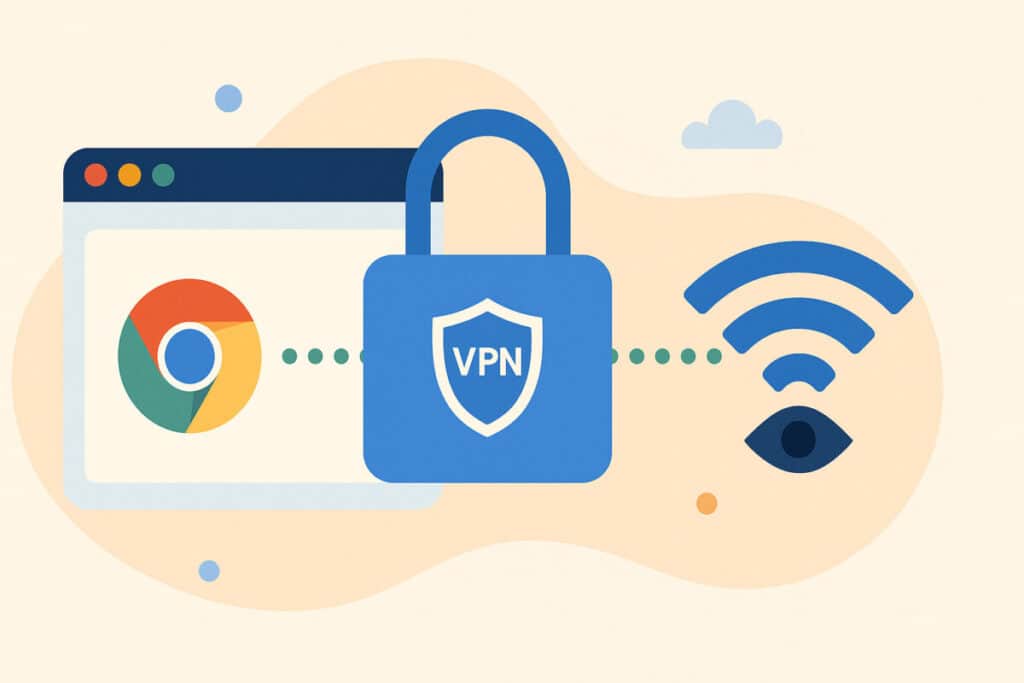
A VPN (Virtual Private Network) encrypts your internet traffic and hides your IP, creating a private channel—even on public Wi-Fi. Chrome VPN extensions make this process instant for your team, without system-wide changes. Want to protect your browser right now? Try the VPN free Chrome extension from X-VPN — a lightweight, secure way without registration to shield Chrome traffic with one click.
How VPN Extensions Work
- Routes browser activity through an encrypted tunnel
- Hides the user’s real IP and location
- Masks session behavior from the network provider or third-party watchers
Technically, VPNs act as encrypted gateways between the user and the internet. For Chrome extensions, only browser traffic is protected—ideal for lightweight coverage when a full-system VPN isn’t available or practical.
Why Project Managers Should Care
- Standardizes team security without technical setup
- Reduces compliance risk for client or company data
- Improves trust in distributed workflows, especially across countries
Understanding the benefits of using a VPN can also help project managers encourage team members to follow better security practices, especially when working remotely or accessing sensitive company data. Chrome VPN extensions offer a low-friction solution that can be quickly rolled out without formal IT training.
3. How to Set Up a Free Chrome VPN Extension (Step-by-Step)
Setting up a Chrome VPN extension is a remarkably quick process that provides immediate protection for your browsing sessions. These lightweight tools are designed to integrate seamlessly into your existing workflow, allowing remote team members to secure their internet connection and mask their digital footprint without the need for complex software installations or lengthy technical configurations.
Here’s how:
- Open the Chrome Web Store and search for trusted “VPN” extensions
- Choose a well-rated provider with clear privacy policies
- Click Add to Chrome, then Add extension
- Pin the extension for visibility
- Click it, select a region, and toggle the VPN switch
- Confirm it’s connected (icon or “ON” message)
Pro Tip: For consistent security, ask team members to enable the VPN on browser startup and re-check during long sessions.
Common Setup Mistakes to Avoid
- Relying only on free VPNs without checking the privacy policy
- Failing to test whether the VPN is active or leaking DNS/IP
- Assuming one team member’s setup works for everyone; always test across OS and regions.
Don’t forget to set browser permissions properly. Some VPNs require permissions for location, proxy access, or background operation—without these, they won’t run correctly.
4. Use an IP Checker to Confirm VPN Success
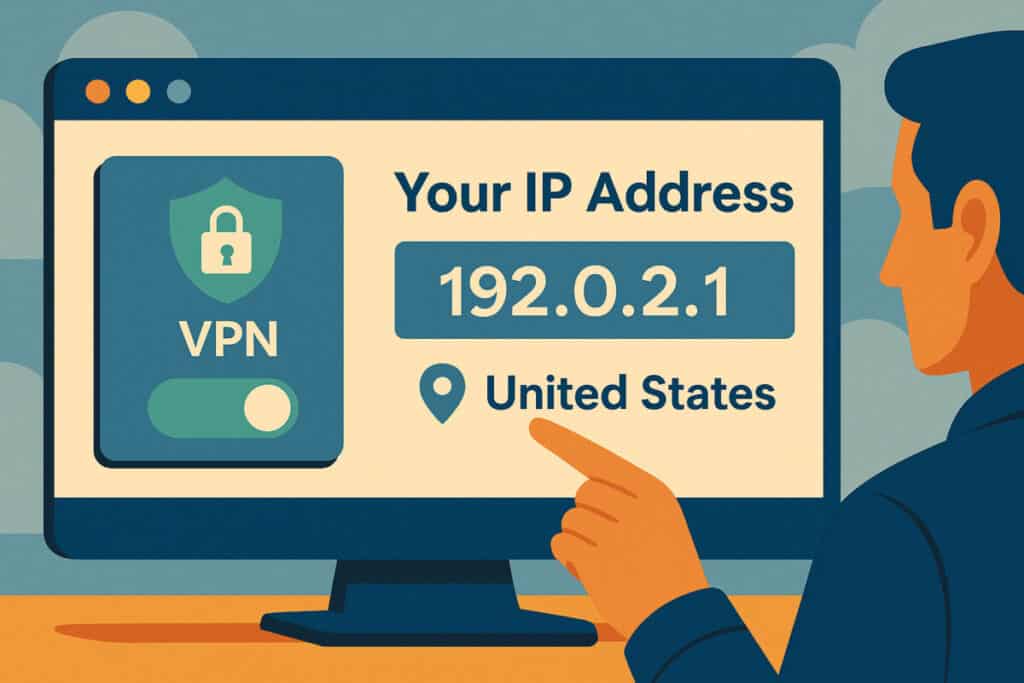
Turning on a VPN is only the first step. You’ll want to confirm it’s actually masking your real IP address. To do this, use a tool like a free IP checker — it quickly shows your current IP and approximate location. If your VPN is active, the IP shown should match the VPN server’s location, not your physical one.
Why IP Checking Matters
- Proof that your VPN is working as intended
- Detect common issues like DNS or WebRTC leaks
- Avoid false security—many users wrongly assume the VPN is active
Best Practice: Encourage your team to check their IP once after connection and during onboarding or travel. It builds habits and reduces human error. You can also automate IP check reminders using scheduled calendar alerts or integrated browser tools. This builds muscle memory into daily operations.
5. VPN Free vs Paid: What’s Best for Your Team?
While free VPNs can be a helpful starting point, they are not always one size fits all. Your choice should depend on your team’s locations, the types of client work you handle, and how sensitive your data is. If you need steadier performance, broader server options, and stronger privacy practices, a paid VPN may be worth the investment.
| Feature | Free VPN | Paid VPN |
| Cost | $0 | $3–10/mo |
| Speed | Often throttled | Typically faster |
| Server Options | Limited | Global, diverse |
| Logs/Data | May log usage | Usually “no-log” certified |
| Support | Basic or none | Priority support |
Use free VPNs when:
- You’re testing team behavior
- You need temporary access
- You’re working on low-risk projects
Upgrade to paid VPNs when:
- Handling sensitive client data
- Needing consistent speed & support
- Working across regulatory environments (e.g., GDPR, HIPAA)
6. Long-Term Tips to Secure Remote Project Work
Maintaining robust browser security is an ongoing process rather than a one-time setup. In addition to regular VPN and IP checks, project managers should encourage their remote teams to adopt consistent digital hygiene habits. This proactive approach helps mitigate evolving cyber threats and ensures that sensitive company data remains protected across all distributed work environments.
- Set browser hygiene policies: limit cookies, block third-party trackers
- Encourage routine IP checks, especially before client meetings
- Use password managers (not browser auto-saves)
- Provide team-wide guides for setting up VPN tools correctly
- Consider central tools that verify VPN usage across devices
Team Security Roles & SOPs
Project managers can assign “security buddies” or include a VPN check step in the project onboarding. For example:
- New team member setup: VPN install + IP test
- Weekly sync reminder: “Is your Chrome VPN on?”
- Retrospective prompt: “Any browser security issues this week?”
This normalizes security as a shared responsibility.
7. Real-World Scenarios Where VPN/IP Tools Make a Difference
To better understand how these tools function in a professional setting, it helps to look at real workflows where security must stay consistent. A VPN can protect browsing on the go, while an IP checker confirms the connection is actually routing through the chosen region. Together, they reduce the risk of leaks and prevent disruptions during client calls and app access.
Scenario 1: The Traveling Consultant
Working from multiple cities weekly, their IP constantly changes. VPN helps them maintain a stable country presence for internal apps, while an IP checker ensures nothing leaks.
Scenario 2: The Public Wi-Fi Project Manager
Conducts stand-up calls from cafés during lunch breaks. VPN shields browser cookies from local snoopers. The IP check confirms it’s active before joining Zoom.
Scenario 3: The Client-Facing Design Team
Accessing prototypes hosted on private servers tied to whitelisted IPs. VPN allows them to appear from permitted regions; IP checker ensures they don’t get locked out mid-pitch.
Each case reflects a practical VPN/IP use where the tools aren’t optional—they’re operational.
Conclusion
Securing Chrome browser activity doesn’t require an IT overhaul. For project managers running hybrid teams, tools like a free Chrome VPN extension and a reliable IP address checker offer a lightweight yet powerful way to prevent data leaks and protect client confidentiality. Make these tools part of your remote work SOP. The effort is minimal, but the protection they offer can save your team from preventable risk. Enjoy simple tools, serious protection, and team-ready features in minutes.
Suggested articles:
- Top 10 Pros & Cons of Using VPN Services
- How US VPN Servers Ensure Data Security and Compliance
- Integrating VPN Technologies in Your Customer Service Strategy

Daniel Raymond, a project manager with over 20 years of experience, is the former CEO of a successful software company called Websystems. With a strong background in managing complex projects, he applied his expertise to develop AceProject.com and Bridge24.com, innovative project management tools designed to streamline processes and improve productivity. Throughout his career, Daniel has consistently demonstrated a commitment to excellence and a passion for empowering teams to achieve their goals.