
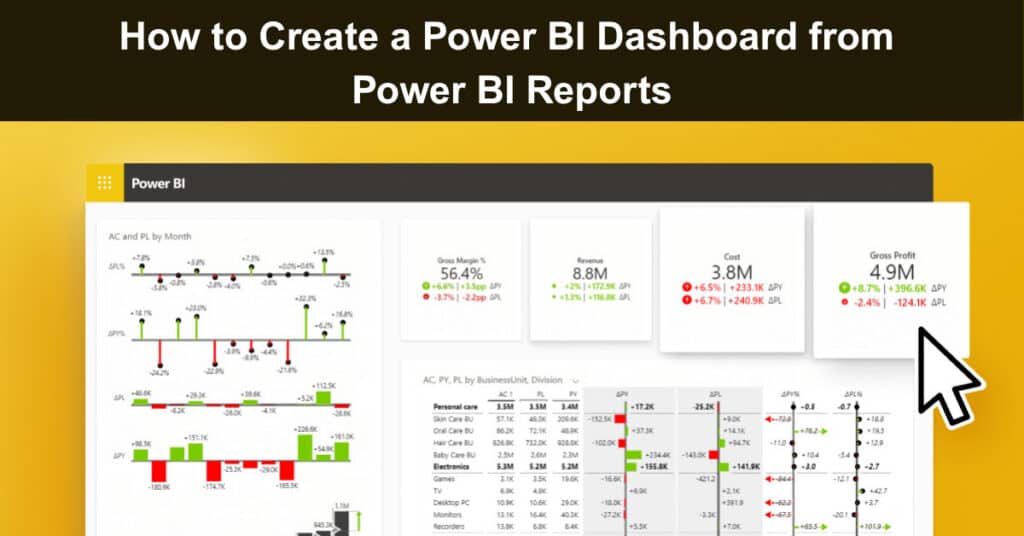
Creating a Power BI Dashboard from reports is one of the most powerful ways to turn detailed analytics into quick, actionable insights. While Power BI reports are rich in detail, dashboards provide a simplified, high-level view that decision-makers can use instantly. However, many users struggle to convert reports into dashboards efficiently – especially when working across multiple tools or managing enterprise-level reporting workflows.
In this guide, we’ll take a slightly different approach. Instead of jumping straight into steps, we’ll first explore the best platforms to create a Power BI Dashboard. Then, we’ll walk through a practical, step-by-step process of creating dashboards from reports using Reporting Hub.
Why Create a Power BI Dashboard from Reports?
Power BI reports are designed for deep analysis, but they can be overwhelming for stakeholders who just need quick answers.
A Power BI Dashboard helps you:
- Consolidate multiple reports into a single view
- Highlight key performance indicators (KPIs)
- Enable faster decision-making
- Improve data accessibility for non-technical users
In enterprise environments, dashboards act as the “front page” of your data ecosystem.
Best Platforms to Create a Power BI Dashboard
Before diving into the process, it’s important to understand the tools available for dashboard creation. While Power BI itself provides built-in capabilities, several platforms enhance or extend its functionality.
1. Reporting Hub
Reporting Hub simplifies how organizations manage, share, and build dashboards from Power BI reports.
It acts as a centralized layer where users can:
- Organize multiple Power BI reports
- Create dashboards without heavy manual configuration
- Manage user access and distribution
- Improve collaboration across teams
What makes Reporting Hub stand out is its focus on usability and governance, making it ideal for enterprise environments.
2. Power BI Service (Native)
The default way to create a Power BI Dashboard is through Power BI Service.
Key features:
- Pin visuals from reports directly to dashboards
- Real-time data updates
- Integration with the Microsoft ecosystem
However, it can become complex when managing large-scale deployments.
3. SharePoint Integration
SharePoint is often used to embed Power BI reports and dashboards within organizational portals.
Benefits:
- Centralized document and report management
- Easy access for internal teams
- Integration with Microsoft 365
Limitations include less flexibility in dashboard customization.
4. Power BI Embedded
Power BI Embedded allows developers to integrate dashboards into custom applications.
Best for:
- SaaS platforms
- Customer-facing dashboards
- Custom user experiences
It requires technical expertise and development resources.
5. Third-Party BI Portals
Various third-party tools provide enhanced dashboarding capabilities on top of Power BI.
They often include:
- Advanced sharing features
- Custom branding
- Additional governance controls
However, they may introduce additional costs and complexity.
Why Choose Reporting Hub for Dashboard Creation?
Among all platforms, Reporting Hub offers a balanced combination of simplicity, scalability, and control.
Key Advantages
- Centralized Management: All reports and dashboards in one place
- User-Friendly Interface: Minimal technical expertise required
- Enhanced Governance: Better control over access and distribution
- Faster Dashboard Creation: Reduce manual steps
For organizations looking to streamline analytics workflows, Reporting Hub provides a more structured approach compared to native tools alone.
How to Create a Power BI Dashboard from Power BI Reports with Reporting Hub
Creating and delivering Power BI dashboards at scale traditionally requires complex development, heavy infrastructure, and ongoing maintenance. Reporting Hub simplifies this entire process by providing a ready-to-deploy, no-code platform for embedding, managing, and sharing dashboards. Below is a streamlined process to turn your Power BI reports into fully branded, secure, and scalable dashboard experiences.
Step 1: Create Report
Build your Power BI report with the required visuals, data models, and KPIs that your users need. Ensure the report is clean, optimized, and ready for sharing across teams or customers. Once finalized, publish it to your Power BI workspace for embedding.
Step 2: Deploy Reporting Hub
Install Reporting Hub from the Azure Marketplace into your environment to enable Power BI Embedded delivery. This removes the need for custom development and speeds up deployment significantly. After deployment, connect it to your Power BI and Microsoft Fabric environment.
Step 3: Set Up Tenant & Assign Content
Create a tenant or portal in Reporting Hub based on your audience, such as internal teams or external clients. Assign the relevant Power BI workspace and reports to that tenant so dashboards appear correctly. This ensures each group gets access to the right data and experience.
Step 4: Customize & Secure
Apply white-label branding, including logos, colors, and navigation to match your organization or client identity. Configure role-based access control and row-level security to ensure users only see what they are authorized to view. This creates a secure, personalized dashboard experience at scale.
Step 5: Publish & Share
Test the dashboard within the Reporting Hub portal to confirm performance, access, and design. Share the portal with users via secure login, enabling seamless access across devices. Deliver dashboards to unlimited users without additional per-user licensing costs, maximizing scalability and ROI.
Best Practices for Dashboard Creation
Creating an effective Power BI Dashboard requires more than just adding visuals—it’s about delivering clear, actionable insights with minimal effort from the user. Following best practices ensures your dashboard remains intuitive, high-performing, and aligned with business needs.
- Keep It Focused and Minimal: Avoid clutter by including only the most important KPIs and visuals. A clean dashboard helps users quickly understand insights without distraction.
- Design for Clarity and Readability: Use consistent colors, fonts, and layouts to make the dashboard visually intuitive. Ensure key metrics stand out and are easy to interpret at a glance.
- Align with Business Objectives: Every visual should serve a purpose tied to business goals. Remove anything that doesn’t contribute to decision-making.
- Optimize Performance: Use efficient data models, limit unnecessary visuals, and avoid heavy calculations to ensure fast loading and smooth interaction.
- Enable Interactivity with Purpose: Add filters and drill-down features where necessary, but avoid overcomplicating the user experience with excessive interactions.
Conclusion
Creating a Power BI Dashboard from reports doesn’t have to be complicated. While native tools provide the foundation, platforms like Reporting Hub offer a more streamlined and scalable approach—especially for enterprise use. By first understanding the best platforms available and then leveraging Reporting Hub for dashboard creation, organizations can:
- Simplify analytics workflows
- Improve collaboration
- Enhance data accessibility
- Maintain strong governance
The key is to focus on clarity, usability, and strategic implementation. With the right approach, your dashboards can become powerful decision-making tools that drive real business impact.
Suggested articles:
- Top 10 Cons & Disadvantages of Microsoft Power BI
- Power BI Pricing Plans & Costs Guide
- The Pros and Cons of Using Microsoft 365 Software (formerly Office 365)

Daniel Raymond, a project manager with over 20 years of experience, is the former CEO of a successful software company called Websystems. With a strong background in managing complex projects, he applied his expertise to develop AceProject.com and Bridge24.com, innovative project management tools designed to streamline processes and improve productivity. Throughout his career, Daniel has consistently demonstrated a commitment to excellence and a passion for empowering teams to achieve their goals.