

Basecamp is widely respected for its simplicity and ease of collaboration. It keeps communication organized and projects moving without unnecessary complexity. However, when it comes to portfolio-level visibility and structured reporting, its minimal design creates limitations. There is no way in Basecamp to see all your projects, whether incomplete and completed, in a convenient master list view that supports sorting, grouping, and exporting.
For managers handling multiple clients or departments, this becomes a reporting obstacle. This is where Bridge24 comes in. Bridge24 for Basecamp is still evolving, with a panel displaying the list of your Basecamp projects. This new panel shows all your projects in a comprehensive grid, allowing you to filter, sort, group, and export them to Excel or CSV. It effectively fills the reporting and exporting gap that Basecamp leaves open.
What Options are Available for Columns in the Basecamp Panel View?
Before exporting any data, it’s important to control what appears in your grid. Clean exports start with clean views. Instead of downloading cluttered spreadsheets, Bridge24 allows you to define exactly what information should be visible. The project panel allows you to customize the columns in the grid view by selecting from 8 available columns. Click the 3-dot menu to set the desired columns.
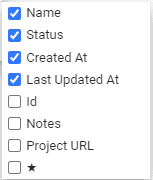
With this feature, you can:
- Show or hide specific columns
- Rearrange column order
- Focus only on relevant project fields
Because exports mirror what is visible in the grid, your column selection directly determines how your Excel or CSV file will look.
How Do You Open the Project List for Basecamp?
Accessing the Project List panel is straightforward and provides immediate portfolio-level visibility that Basecamp itself does not offer in a single screen. Use the “Projects” button at the screen’s top upper left. See the image referenced in the original guide.
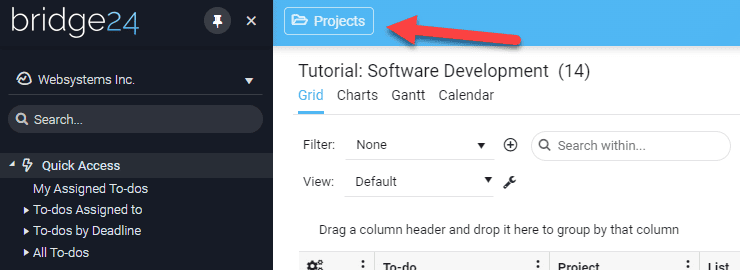
Once clicked:
- The full Project List grid opens
- All assigned projects are displayed
- You can toggle between active, completed, or all projects
Clicking any project inside the grid will open it directly in Basecamp, making it easy to move between overview and execution.
How Do You Use the Project List Panel for Basecamp?
The Project List panel displays all your assigned projects in a grid view that offers much flexibility. Rather than jumping between individual projects, you can analyze your entire portfolio from one structured interface. Clicking any project will open it directly in Basecamp.
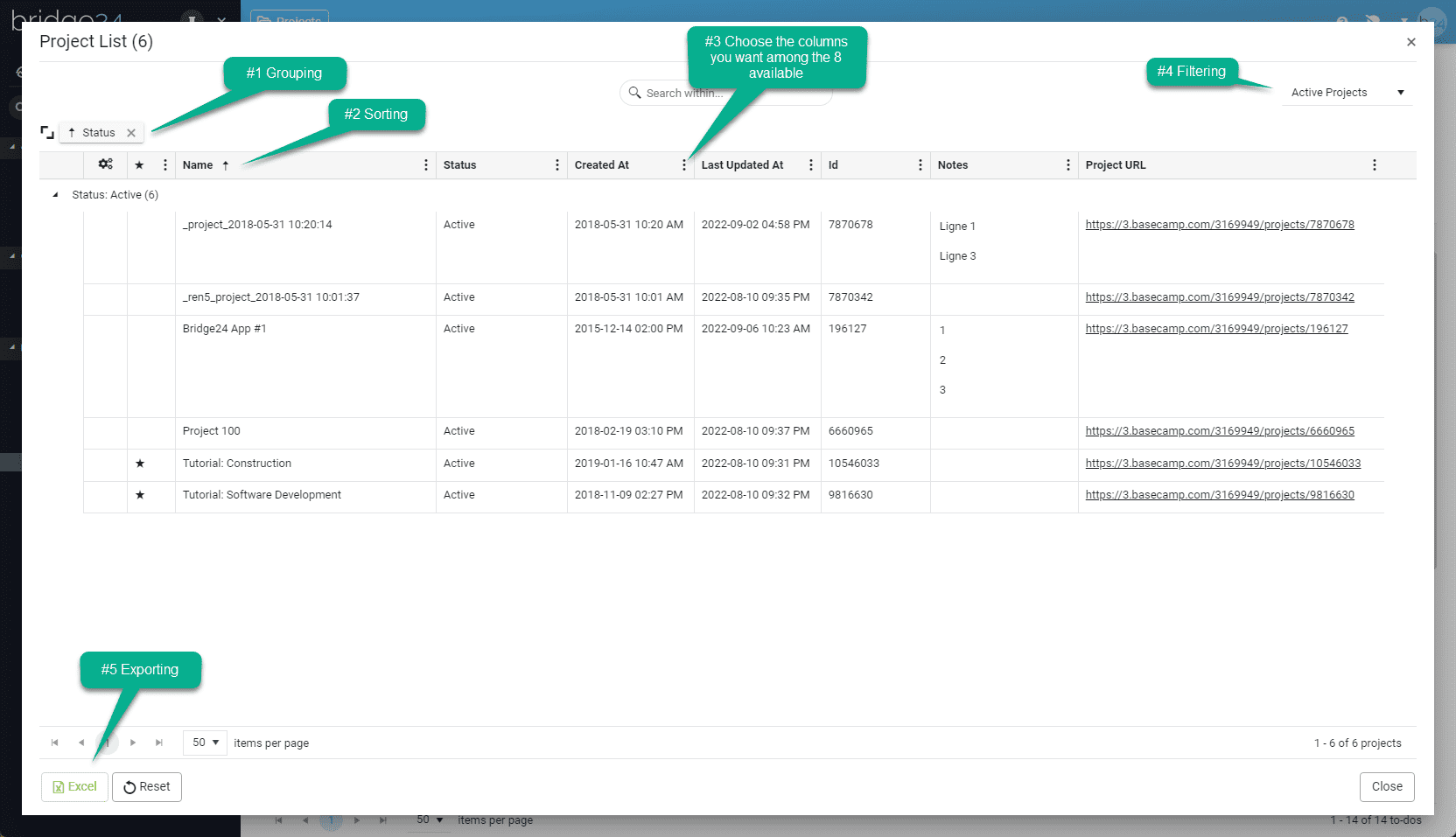
The following options are available:
Grouping
When managing multiple projects, structure matters. Grouping helps you organize large datasets into meaningful sections for faster analysis and clearer reporting. This feature allows you to group your projects on one or several levels. For example, you can group your projects by Status. To activate this feature, simply drag and drop a column above the grid.
You can group by:
- Status (Active vs Completed)
- Owner
- Other available columns
Grouping transforms a flat list into a structured, report-ready layout.
Sorting
Sorting gives you control over how projects are ordered. Whether you want alphabetical organization or priority-based sequencing, sorting helps you focus quickly. This feature allows you to sort your projects by clicking on any column. By default, the projects are sorted by name in ascending order. You can sort on any column by clicking on the header. Clicking again reverses the order.
This makes it easy to:
- Identify recently updated projects
- Prioritize time-sensitive work
- Maintain alphabetical structure
Choose Your Columns
Not every report requires the same information. Executives may want high-level status, while project managers may need detailed fields. Column selection ensures flexibility. This feature allows you to add or remove columns in the grid by clicking the 3-dot menu for any column. You can choose among eight columns for Basecamp. Since exports only include selected columns, this ensures your spreadsheet stays focused and professional.
Filtering
Filtering allows you to narrow down what appears in your grid instantly. Instead of manually reviewing every project, you can limit the dataset to match your reporting needs. This feature allows you to display only your:
- Active projects
- Completed projects
- All projects
Filtering is particularly useful when preparing quarterly summaries or status updates.
Export to Excel
After applying grouping, sorting, column selection, and filtering, exporting becomes straightforward. Click the Excel button below the grid to export all displayed projects to Excel. This will only export the filtered projects with the columns you have selected in the grid. That means your exported file reflects your current configuration exactly — no extra data, no missing structure.
How Do You Export Your Basecamp Projects to Excel or CSV?
Exporting is designed to be simple but precise. The goal is to generate structured files that can be used immediately for reporting, sharing, or backup. See the image referenced above. Open the Projects panel and click the green Excel button at the bottom.
Step-by-step:
- Open the Projects panel.
- Apply filters (Active, Completed, or All).
- Group or sort projects as needed.
- Select your preferred columns.
- Click the green Excel button.
- Choose Excel (.xlsx) or CSV format.
- Download the file.
The exported file will match your on-screen grid configuration.
Additional Reporting & Export Capabilities
While the Project List panel solves the portfolio visibility issue, Bridge24 extends Basecamp even further by adding structured reporting tools that go beyond basic exports.
These include:
- Multi-project exports
- Advanced reporting with grouping
- Interactive charts
- Grid, Calendar, and Gantt views
- PDF export options
Multi-Project Export
Unlike Basecamp’s native tools, Bridge24 can consolidate to-dos and projects from multiple projects into a single structured list. This eliminates manual merging of spreadsheets and reduces reporting errors.
Structured Excel Files
Excel exports are formatted in an organized manner. Files may include:
- A main sheet for projects or tasks
- Separate sheets for subtasks
- Additional sheets for comments
- Attachment details separated clearly
This structure improves clarity and usability.
Advanced Reporting Before Export
You can group data by project, status, or assignee before exporting. This allows you to generate structured status reports instantly. Reports can also include totals, averages, counts, and other calculated summaries.
Filling the Reporting Gap for Basecamp
Basecamp is excellent for collaboration. But advanced reporting was never its primary objective. Organizations that require structured data exports often find themselves needing additional tools.
Bridge24 expands Basecamp by providing:
- A comprehensive master grid
- Advanced filtering and grouping
- Structured Excel and CSV exports
- Portfolio-level project visibility
- Backup-friendly exports, including completed projects
For teams managing multiple clients, departments, or long-term initiatives, this added layer turns Basecamp into a reporting-ready system.
Final Thoughts
If your workflow depends on structured reporting, exporting project data is not optional. Basecamp keeps things simple, but simplicity limits advanced visibility. Bridge24’s Project List panel provides what Basecamp lacks, including a full list of active and completed projects, flexible grouping and sorting, custom column selection, and clean export to Excel or CSV. For managers, consultants, and teams that rely on clear reporting and external analysis, exporting your Basecamp projects through Bridge24 is the practical solution.
Suggested articles:
- Basecamp – Export Cards and To-dos to Excel or CSV
- Basecamp – Export Cards and To-dos to Excel or CSV
- The Perfect Basecamp Gantt Chart Integration

Daniel Raymond, a project manager with over 20 years of experience, is the former CEO of a successful software company called Websystems. With a strong background in managing complex projects, he applied his expertise to develop AceProject.com and Bridge24.com, innovative project management tools designed to streamline processes and improve productivity. Throughout his career, Daniel has consistently demonstrated a commitment to excellence and a passion for empowering teams to achieve their goals.