
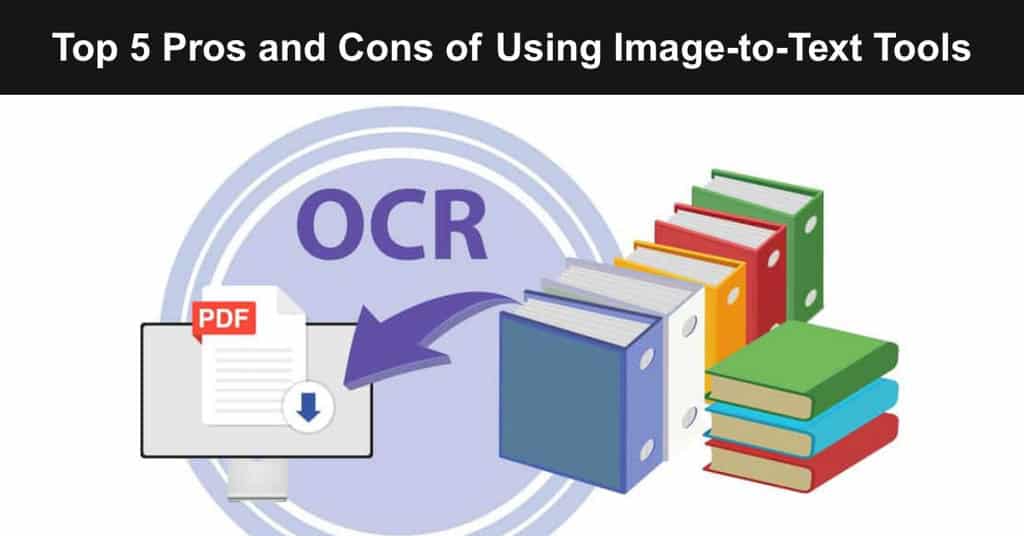
Retyping invoices, class notes, and scanned contracts by hand eats entire afternoons and still leaves typos behind. Image-to-text tools remove that chore by reading the characters in a photo, screenshot, or PDF and returning editable text within seconds, ready to paste into reports. OCR engines now reach above 99% accuracy on typewritten pages, according to AIMultiple, so clean documents convert with few corrections.
Speed is only part of the picture. Accuracy drops on handwriting, privacy depends on where a file travels, and pricing ranges from free tiers to custom enterprise quotes. Project managers, students, and small business owners all face these trade-offs when they pick a converter. Here are the five biggest advantages and the five biggest drawbacks of image-to-text tools, starting with the main benefits.
Top 5 Pros of Image-to-Text Tools
Image-to-text tools earn their place in daily workflows by removing the slowest step in document handling: retyping. The five advantages below cover speed, inclusion, range, filing, and ease of use. Each one shows how turning a picture of text into real, editable characters changes the way individuals and teams capture, search, and share information.
1. Time Efficiency
Automated extraction replaces slow manual retyping, so a stack of scanned pages becomes editable text in minutes instead of hours. A digitization cost-benefit analysis also explains how searchable digital records shorten the hunt for a specific file, which saves staff time long after the scan and keeps routine requests from piling up across the whole office.
These time savings show up quickly across everyday document handling tasks:
- Batch Processing: Many converters accept several images at once, so a clerk can queue a full folder of receipts, run one extraction, and return later to review the output instead of retyping line by line.
- Instant Output: Text appears within seconds of upload, which lets a student pull a quotation from a textbook photo or an analyst capture a table from a screenshot without leaving the task at hand.
- Fewer Retyping Errors: Machine extraction removes much of the keystroke fatigue behind typos in names, amounts, and dates, so reviewers check flagged lines instead of rereading entire pages.
Real-Life Example: A small accounting office scans supplier invoices every Friday. Instead of keying each one into a spreadsheet, a clerk uploads the batch to an image-to-text tool, copies the extracted totals and dates into the ledger, and closes the weekly entry before lunch rather than working into the evening.
2. Accessibility
Converting printed pages into real text opens documents to readers who cannot see them clearly. At least 2.2 billion people live with a near or distance vision impairment, according to the World Health Organization, which makes machine-readable text a practical accessibility tool for schools, offices, and libraries rather than a mere convenience, and it widens the audience for every document.
Text output supports several assistive workflows that scanned images cannot offer:
- Screen Reader Support: Assistive software reads real characters aloud or converts them to braille, while a flat photograph of a page gives it nothing to interpret, so conversion makes the content reachable.
- Text-to-Speech Playback: Readers with dyslexia or other reading disorders can listen to extracted text at their own pace, which turns a printed handout into an audio resource without special equipment.
- Adjustable Display: Editable text lets people enlarge fonts, change contrast, and adjust line spacing to match their needs, something a fixed image of a page never allows.
Real-Life Example: A university student with low vision photographs a printed lecture handout before class. An image-to-text tool converts it into text, the student enlarges the font and switches to high contrast, and a screen reader then reads the handout aloud during revision without any help from classmates.
3. Versatility
OCR tools like Image-to-Text converter support 20 languages and seven image formats, including JPG, PNG, and TIFF. That range makes image-to-text tools useful for research, document editing, translation, and handwritten image-to-text conversion, so one tool can serve a student, an analyst, and a legal assistant without extra software, subscriptions, or training.
Versatility shows up in the range of content these tools can handle:
- Multilingual Content: Language packs let one tool read English invoices, Spanish forms, and Arabic notices, so international teams avoid juggling a separate converter for every market they serve.
- Mixed Sources: Screenshots, phone photos, scanned PDFs, and printed pages all work as inputs, which removes the need to prepare each file in a special format before extraction begins.
- Varied Use Cases: Researchers extract quotations, editors revise printed drafts, and translators move foreign text into their own software, all with the same basic upload-and-copy routine and no training.
Real-Life Example: A freelance translator receives a scanned French contract and a photographed German manual in the same week. She runs both through one image-to-text tool, pastes the extracted text into her translation software, and delivers each project to her clients on schedule without retyping a single paragraph by hand.
4. Data Organization
Digitizing invoices, forms, and historical records only pays off when people can find them later. Running OCR on scanned PDF documents embeds actual text, so search tools and indexes read the content instead of a bare picture. Cloud folders, hard drives, and solid-state drives then hold records that behave like searchable databases that any colleague can query.
Organized digital records create several lasting advantages for teams that adopt them:
- Searchable Archives: Typing a client name or invoice number retrieves the right file in seconds, replacing the old routine of flipping through boxes of paper or scrolling through unlabeled image folders.
- Consistent Indexing: Extracted text feeds file names, tags, and metadata, so every record follows the same naming pattern and a new colleague can browse the archive without a guide.
- Flexible Storage: Digital copies live on cloud storage, HDD, or SSD drives, which frees office space and lets a team back up critical records in more than one location.
Real-Life Example: A property manager inherits twenty years of lease paperwork in cardboard boxes. After scanning and converting each lease to searchable text, a search for a tenant name or a renewal clause returns results instantly, and the boxes leave the storage room for good, freeing space for the team.
5. Convenience
Editing, copying, and sharing extracted text takes only seconds, which streamlines communication and collaboration in professional and academic settings where deadlines are tight, and teams rarely work in the same room or even the same time zone. That flexibility explains why most modern OCR apps now extract print and handwritten text from scans and photos.
Convenience comes from how little effort the output needs before use:
- Direct Editing: Extracted text opens in any word processor, so a corrected paragraph or updated figure takes a few keystrokes instead of a full manual retyping session.
- One-Click Copying: Most tools offer copy and download buttons, which move text into email, chat, or a project tracker without any intermediate file conversion or special software.
- Easy Sharing: Plain text travels through messaging apps and shared documents without the file size or formatting problems that come with large image attachments on slow connections.
Real-Life Example: A project coordinator photographs a whiteboard full of action items at the end of a workshop. The tool converts the photo into text, she pastes the list into the team chat, and everyone receives editable tasks with owners and deadlines before leaving the meeting room that same day.
Top 5 Cons of Image-to-Text Tools
Every convenience in image-to-text conversion comes with a matching risk that buyers should weigh before relying on a tool. The five drawbacks below cover privacy, layout loss, connectivity, cost, and copyright. Understanding each one helps teams decide when a converter fits the job and when a different workflow protects their data and budget.
1. Security Concerns
Many online converters promise less privacy than they imply, so uploaded files may sit on servers or help train models used by other customers. The FTC’s guide to protecting personal information advises businesses to keep only the data they need and dispose of the rest securely when it is no longer useful to the business.
Several security gaps deserve attention before anyone uploads a file:
- Unclear Retention: Some free services keep uploaded files for days or weeks, and their privacy policies rarely state who can access the copies or when deletion happens.
- Confidential Content: Contracts, medical forms, identity documents, and bank statements contain details that cause harm if a server is breached or a provider shares data with partners.
- Model Training Risk: A provider may reuse uploaded images to improve its own recognition models, which means private text can leave the original owner’s control without any warning.
Real-Life Example: A paralegal uploads a signed settlement agreement to a free online converter to save time. Weeks later, the firm learns the service keeps files for thirty days and shares data with advertising partners, which creates a client confidentiality problem that no one anticipated, forcing a difficult client conversation.
Solution: Review each provider’s retention and deletion terms before upload, and prefer tools that process files locally or delete them immediately. For regulated documents, use an offline desktop program, redact sensitive fields first, and keep a written list of approved tools that every team member can check before uploading anything.
2. Formatting Limitations
Extracted text often loses tables, bullet points, and font styles, so users must rebuild layouts by hand after every conversion. Modern vision language models for document parsing handle complex layouts better, yet the Technology Radar warns they can invent text that was never on the page, so human review remains necessary for any important document.
Layout problems tend to appear in a few predictable places:
- Broken Tables: Rows and columns often collapse into a single stream of text, which forces users to rebuild the grid by hand before the data can enter a spreadsheet.
- Lost Styling: Headings, bold text, and bullet points flatten into plain paragraphs, so a formatted report needs fresh styling after extraction before anyone can publish or present it.
- Reading Order Errors: Multi-column pages and sidebars can merge into a jumbled sequence, which makes a clean copy of the original article harder to produce without a careful review.
Real-Life Example: A finance analyst photographs a quarterly report and extracts the text. The revenue table collapses into one long line of numbers, so she spends an afternoon rebuilding the columns manually, which cancels most of the time the converter was supposed to save her, and she misses her deadline.
Solution: Choose a converter that offers a formatted output mode and exports to Word or Excel, and test it on a sample page first, preferably one with tables. For complex tables, extract each one separately, then compare the result against the original image before the data enters any report or presentation.
3. Dependence on the Internet
Cloud tools need a steady connection. If you set aside cloud-based solutions and choose downloadable offline software, those programs often carry hefty prices, along with installation, updates, and local storage needs that small teams may struggle to manage without dedicated IT support or a clear budget for upgrades, which often slows rollout across several offices.
Connectivity shapes the experience in several practical ways, including these:
- Remote Locations: Field teams, rural offices, and travelers work with weak or intermittent signals, so uploads stall and large batches fail halfway, forcing staff to start again.
- Network Outages: A single outage can halt a deadline-driven digitization project because a cloud tool offers no fallback once the connection drops during processing, and unsaved results disappear.
- Speed Limits: Large scans take longer to upload on slow links, which erodes the speed advantage that made automatic extraction attractive in the first place for busy teams.
Real-Life Example: An audit team visits a regional branch with unreliable internet. Staff plan to convert a stack of paper records on site, but the online converter times out repeatedly, and the team carries the papers back to the head office for processing days later, which delays the final report.
Solution: Install an offline OCR program on laptops that travel, and keep a cloud tool for the main office. Before every field visit, test the offline option on a sample page, and schedule uploads for locations with dependable connections so large batches finish without interruption, repeated uploads, or lost progress.
4. Prices
Not every option is free. Docsumo offers a 14-day free trial, then quotes custom paid plans by expected monthly page volume, a model that can quickly overwhelm an SME or an individual who only wants to streamline a workflow without committing to a large annual contract or a long onboarding process that demands technical staff.
Costs build up in several places beyond the headline price:
- Volume-Based Quotes: Business plans often depend on the pages processed each month, so a seasonal spike in scanning can raise a bill that looked manageable during the trial.
- Setup Fees: Some platforms add a one-time charge on top of the subscription, and the amount depends on document complexity and the level of support the team needs.
- Free Tier Limits: Free plans usually cap daily uploads, file sizes, or features like batch processing, which pushes regular users toward a paid tier sooner than they expect.
Real-Life Example: A three-person bookkeeping firm tests a premium extraction platform during a free trial and loves the results. When the quote arrives based on its yearly page volume, the firm decides the price is too high and returns to manual entry for most clients, which keeps its workload unchanged.
Solution: Estimate your monthly page count before comparing vendors, and ask for a written quote that lists every fee. Start with a free tier or a trial, track actual usage for a month, and upgrade only when the numbers clearly justify the cost, so the subscription never becomes an unplanned expense.
5. Ethical Concerns
Extracted text is easy to copy, paste, and reuse without asking the original authors for permission. The U.S. Copyright Office says using someone else’s work falls under fair use only in limited cases, and it recommends seeking permission when in doubt, a rule that applies equally to scanned and typed text, whatever the original format.
Ethical questions involve content owners and the people who reuse their work:
- Copyright Exposure: Extracting and republishing text from a protected book, article, or infographic can infringe the owner’s rights even when the copy is only a few paragraphs long.
- Attribution Gaps: Extracted text carries no author name or source, so copied passages can circulate without credit and make plagiarism easy to commit by accident or oversight.
- Public Access Debate: Open access to extraction tools raises the question of whether platforms should limit use, and no clear standard exists across providers today for copyrighted material.
Real-Life Example: A marketing intern photographs a competitor’s printed brochure, extracts the copy, and pastes several paragraphs into a client proposal. The client’s legal team spots the matching language during review and asks for a full rewrite, which delays the proposal by a week and strains the agency’s client relationship.
Solution: Use extraction for your own documents or for material you have permission to reuse, and quote only short passages with clear credit. Keep a source log for every extracted file, and always ask the copyright owner for written permission before reusing longer sections in published work or marketing materials.
How to Choose the Right Image-to-Text Tool
Selecting the right image-to-text tool is not a one-size-fits-all decision. To avoid security risks or formatting headaches, you need to evaluate a provider based on your specific document types, privacy requirements, and budget. First, confirm what you need to extract, how sensitive the files are, and whether you must work fully offline.
Use these criteria to compare candidates before committing to one:
- Document Type: Match the engine to your content, because printed pages, handwriting, tables, and low-quality photos each need different strengths, and a tool that excels at one may struggle with another.
- Privacy Model: Check where processing happens, how long files stay on the provider’s servers, and whether deletion is automatic, since an image-to-text tool offline option suits confidential material best.
- Output Formats: Look for exports to Word, Excel, and searchable PDF, plus a formatted mode that keeps headings and tables, so the extracted file needs minimal cleanup.
- Pricing Model: Compare free tier limits, page-based plans, and setup fees, and run a real batch of your own documents through a free trial before signing any contract.
Common Mistakes When Using Image-to-Text Tools
Skipping the review step is the most frequent mistake, because OCR errors often look like normal text to a tired reader. While individual errors may seem negligible, they can accumulate across thousands of records, leading to significant data inaccuracies and increased costs over time.
These habits cause most of the avoidable problems teams report:
- Skipping Proofreading: Teams paste extracted text straight into reports, so a misread digit in an invoice total or contract date survives into the final document unnoticed by reviewers.
- Using Low-Quality Scans: Blurry photos, shadows, tilted pages, and tiny fonts reduce recognition accuracy, so a quick rescan at higher resolution usually beats hours of manual correction later.
- Uploading Sensitive Files Online: People treat free converters like private tools, yet contracts and identity documents deserve an offline workflow or a provider with a clear and verifiable deletion policy.
- Expecting Perfect Handwriting Results: Cursive and messy notes still produce more errors than printed text, so handwritten pages need a second read before anyone relies on the output for decisions.
Image-to-Text Tools by the Numbers: Accuracy, Market, and Risk
Hard numbers help separate marketing claims from realistic expectations. The table below condenses verified accuracy benchmarks, market size, and practical guidance into short facts. Readers who need a quick answer for a meeting, a purchasing decision, or a team briefing can scan the rows and see which factors matter most for their own documents and workflows.
Key facts and figures for quick reference appear in this table:
| Aspect | Key Fact or Answer | Why It Matters |
|---|---|---|
| Core Function | Image-to-text tools use OCR to turn pixels into editable, searchable characters. | Understanding the basic mechanism explains why quality scans produce better results than blurry photos. |
| Typical Accuracy | LlamaIndex reports character error rates below 1% for clean printed text and 3% to 5% for handwriting. | Printed documents convert reliably, while handwriting always needs human review. |
| Market Size | Persistence Market Research projects the OCR market at US$18.6 billion in 2026, reaching US$46.3 billion by 2033. | Strong growth signals continued investment, which should bring better accuracy and more pricing options. |
| Best-Fit Content | Clear, high-contrast printed pages and legible photos produce the strongest results. | Preparing a clean scan saves more time than correcting a poor extraction later. |
| Main Risks | Privacy exposure, lost formatting, subscription costs, and copyright misuse are the four most common drawbacks. | Knowing the risks upfront helps teams choose safeguards before they adopt a tool. |
| Safest Workflow | Process confidential files offline, review every extraction, and credit all sources. | A simple routine protects data, accuracy, and reputation at the same time. |
Conclusion
Image-to-text tools improve work by turning photos, scans, and screenshots into editable, searchable text that supports faster filing, wider accessibility, and easier collaboration. Their versatility lets students, analysts, and project teams reuse printed information without retyping it, and the biggest gains appear when scans are clear and well lit, and the extracted text is reviewed before anyone depends on it for client work.
The drawbacks are just as real, from privacy exposure and lost formatting to internet dependence, subscription costs, and copyright risks. Responsible habits reduce every one of them: protect confidential files, test tools on sample pages, review the output, and credit original authors whenever you reuse their words. Choose carefully, start with a small batch, and let the real results guide your next step with confidence.
Frequently Asked Questions About Image-to-Text Tools
What is the best image-to-text tool for sensitive documents?
The best choice for sensitive documents is a tool that processes files on your own device or deletes uploads immediately after conversion. Look for a clear retention policy, offline support, and export options that fit your workflow. Test the tool on a sample page first, and never upload contracts, medical records, or identity documents to a service whose privacy terms you have not read.
Is an online image-to-text converter safe to use?
An online converter can be safe for casual content, but safety depends on the provider’s retention and sharing rules. Free services may store files for days or reuse them to train models, so read the privacy policy before uploading anything private. For confidential material, choose a tool with automatic deletion, or use offline software that never sends your files to an external server.
Can an image-to-text converter keep the original formatting?
Some converters preserve headings, bullet points, and simple tables, but results vary with layout complexity. Look for a formatted output mode and export options such as Word or Excel, then test a sample page. Complex tables and multi-column layouts often need manual cleanup, so compare the extracted file against the original image before you share or publish it.
Can I use an image-to-text converter offline?
Yes, offline converters exist, usually as desktop programs or open-source engines you install on your computer. They process files locally, which protects privacy and removes the need for a stable connection. The trade-offs include installation, updates, and sometimes higher license costs, so compare these against cloud tools before deciding which approach fits your team and budget.
How accurate are image-to-text tools on handwriting?
Handwriting recognition is improving, yet it still trails printed text. Neat block letters convert far better than cursive or rushed notes, and photo quality affects the result noticeably. Treat every handwritten extraction as a draft, read it against the original, and rescan with better lighting or higher resolution when the output contains many errors or missing words.
Suggested articles:
- How Businesses Convert Images into Editable Word Documents
- How Project Managers Can Stop Documentation From Slowing Everything Down
- How to Convert Word Documents to Fillable PDF Forms in AI Word Editor

Daniel Raymond, a project manager with over 20 years of experience, is the former CEO of a successful software company called Websystems. With a strong background in managing complex projects, he applied his expertise to develop AceProject.com and Bridge24.com, innovative project management tools designed to streamline processes and improve productivity. Throughout his career, Daniel has consistently demonstrated a commitment to excellence and a passion for empowering teams to achieve their goals.