
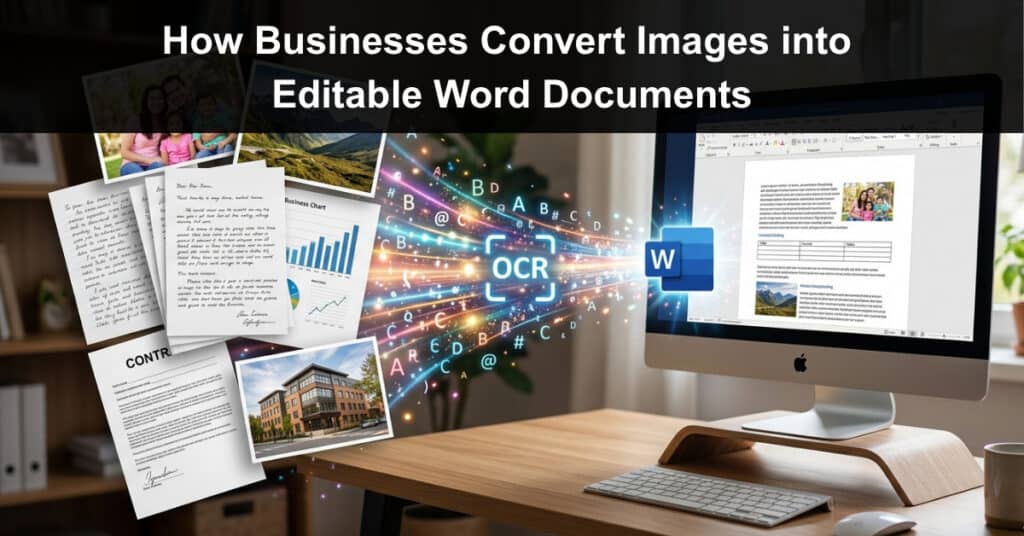
We deal with documents every day. But not all of them are easy to work with, especially when they come in image format and can’t be edited. Scanned contracts, photographed receipts, and image-based reports are just a few examples of files that look readable but remain frustratingly out of reach when you need to make changes. For businesses, where time is money, converting images into editable Word documents is not just convenient — it’s vital.
This guide will show you how to do it efficiently, whether you’re handling a single file or processing documents in bulk. Throughout, we’ll keep the two most important factors for businesses in mind: speed and accuracy.
Why Convert Images Into Word Documents
Every business, regardless of size, industry, or location, relies on documents daily. But not all documents are easy to work with straight away, especially when they come in uneditable formats like scans or photos. Converting images into Word documents is one of the most practical solutions. Here’s why businesses make this a priority:
- Contracts and Agreements Need Edits: Scanned contracts often require updates, redlines, or revisions that simply aren’t possible in image format.
- Invoices and Receipts Must Be Processed: Finance teams need editable text to log, verify, and manage financial records efficiently.
- Reports and Records Require Updates: Internal documents need to be adjusted over time, and image formats make that needlessly difficult.
- Collaboration Becomes Easier: Editable Word documents can be shared, commented on, and co-edited across teams.
- Searchability Improves: Text in a Word document is searchable, saving time when looking for specific information.
Still, there are a few challenges to keep in mind before you start converting.
What Are These Issues?
Converting images to Word documents is more challenging than working with other common file formats. Unlike a regular digital file, images lock all content inside as pixels, making them impossible to edit without the right technology. Here are the key challenges businesses run into:
- Content Is Locked Inside The Image: All text exists purely as pixels. To extract it, you need OCR (optical character recognition), which identifies text areas, analyzes letter shapes, and matches them to known patterns.
- Layouts Are Complex To Reconstruct: Business documents include headings, paragraphs, tables, and columns that OCR must rebuild — ideally preserving the original formatting as closely as possible.
- Atypical Characters Add Difficulty: Handwritten text and special fonts are harder for OCR to interpret accurately, increasing the risk of errors.
- Manual Correction May Be Needed: Even the best OCR tools aren’t perfect. Complex or low-quality images can result in mistakes that require manual review and fixes.
How To Solve These Issues
The solution sounds simple: just find an online converter and upload your file. But in practice, it’s a bit more demanding than that. With dozens of tools available, each relying on different OCR models and algorithms, the differences in accuracy, formatting quality, and processing speed can be significant. On top of that, business documents often carry sensitive information; choosing a tool is not just a matter of quality, but also of trust and security. Here are the key factors to keep in mind when selecting an image-to-Word converter:
- Not All Converters Are Equal: Different tools rely on different OCR models and algorithms, which directly impact accuracy, formatting quality, and processing speed. It’s worth trying a few options before committing to one.
- Data Security Matters: Business documents often contain sensitive personal or corporate information. Poor data protection standards or a lack of transparency in how tools handle your files can put that information at risk.
- Choose A Tool With A Proven Track Record: To avoid both accuracy and security issues, opt for a converter that has demonstrated reliability over time.
- iScanner Is One Such Tool: With over 10 years in the scanning market, iScanner has developed its own proprietary OCR technology designed to handle complex layouts, special fonts, and handwritten text, while maintaining strong data protection standards.
How to Convert Images into Editable Word Documents with iScanner
The whole process takes just three simple steps, with no sign-in or installation required — making it a quick and hassle-free solution for busy professionals who need results without the technical overhead:
- Open iScanner’s image-to-Word converter.
- Select your file from your device or drag and drop it directly onto the page — iScanner supports a wide range of image formats, so you don’t need to worry about compatibility.
- Wait a few moments while iScanner’s OCR technology processes your file, accurately extracting text and reconstructing the layout. Once done, simply download your fully editable Word document.
That’s it! The conversion is fast, straightforward, and accessible from any browser on any device. No account setup, no software to install, and no technical knowledge needed — just upload and go.
Apart from converting images into Word documents, iScanner also offers a range of other practical online tools that can help businesses streamline their document workflows daily:
- Merge Or Split PDFs: combine multiple documents into a single cohesive file, or break a large PDF into smaller, more manageable parts
- Measure Area with a Camera: a unique and powerful tool that lets you take real-world measurements directly using your device’s camera, saving time on manual measuring
- Compress PDFs: significantly reduce file sizes without sacrificing quality, making it easier to share documents via email or store them efficiently
- Add Page Numbers: quickly and automatically number the pages of any PDF, keeping your documents organized and professional
- Crop Scans: trim unnecessary edges, borders, or cluttered backgrounds from scanned documents for a cleaner, more polished result
5 Tips for Best Results
Whether you use iScanner or any other converter you trust, these small adjustments can make a noticeable difference in accuracy and formatting:
- Use High-Quality Images. (Best practice: 300 DPI if you can) Even advanced OCR struggles with blur, compression artifacts, or low-resolution scans. Clear images give the software more detail to recognize letters, numbers, and spacing accurately.
- Keep Text Straight And Aligned. If the page is skewed or tilted, OCR may misread characters and distort line breaks. When possible, straighten the page before converting or re-capturing the image.
- Avoid Cluttered Backgrounds. OCR has to separate text from “noise,” so busy patterns, heavy shadows, or decorative elements can reduce accuracy. Try a clean, even background and remove glare where you can.
- Check Contrast. Dark text on a light background is easiest to interpret. If your scan is washed out or the text is faint, increasing contrast (or re-scanning) often improves results significantly.
- Proofread After Conversion. OCR is powerful, but it can still make mistakes, especially with small fonts, handwritten notes, tables, or unusual layouts. A quick review helps catch errors early before you share or edit the Word document.
Key Takeaways
Converting images into editable Word documents is essential for businesses that need to quickly update and share content. This is made possible by OCR (optical character recognition) technology, but the accuracy and layout of the converted document depend on the tool you choose. iScanner is a reliable option that can handle even complex layouts, special fonts, and handwritten text.
However, no OCR can perfectly process a poor-quality scan. That’s why your personal input also matters: use high-quality images, keep text aligned, avoid cluttered backgrounds, and check contrast. And don’t forget to proofread the final document.
Suggested articles:
- How to Convert Word Documents to Fillable PDF Forms in AI Word Editor
- Top 5 Pros and Cons of Using Image-to-Text Tools
- How To Import Data Into Excel From Images?

Daniel Raymond, a project manager with over 20 years of experience, is the former CEO of a successful software company called Websystems. With a strong background in managing complex projects, he applied his expertise to develop AceProject.com and Bridge24.com, innovative project management tools designed to streamline processes and improve productivity. Throughout his career, Daniel has consistently demonstrated a commitment to excellence and a passion for empowering teams to achieve their goals.