
Microsoft’s project management tools have evolved significantly, giving teams more flexibility in how they plan, estimate, and track work. Whether you are using the modern Microsoft Planner for collaborative task management or the desktop version of Microsoft Project for advanced scheduling, understanding how task types interact with your plan is fundamental to accurate forecasting. Choosing the right task type prevents resource overallocation and ensures your schedule reflects how work will actually unfold.
This article explains the three core task types available in Microsoft Project for Desktop, including Fixed Duration, Fixed Work, and Fixed Units, and explores how Microsoft Planner‘s updated features complement these capabilities for modern teams. Applying the right task type at the right moment transforms a rough project outline into a reliable, execution-ready schedule.
Understanding Estimates and Task Types
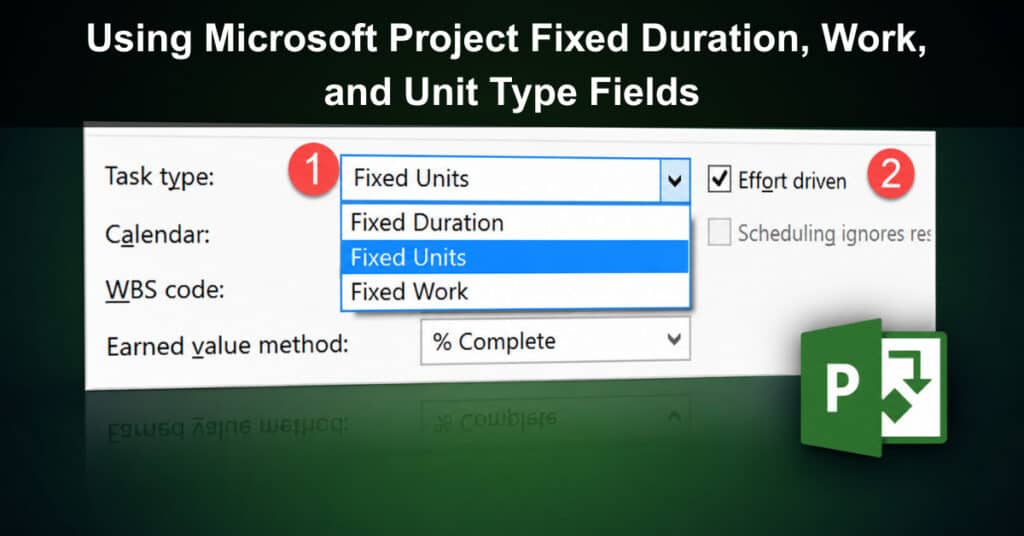
Estimates are predictions of task effort and duration, and Microsoft Project for Desktop supports three distinct task types to model those predictions accurately. These types, Fixed Duration, Fixed Work, and Fixed Units, each serve a different planning purpose and control how the scheduling engine responds when you adjust one variable in the Duration x Units = Work formula. Understanding which type to apply and when is one of the most practical skills a project manager can develop.
A well-constructed project plan typically combines all three task types to reflect the reality of how different kinds of work behave. Status meetings, milestone reviews, and similar events are scheduled differently from deliverables like documents or software modules. The MS Project Type field gives project managers control to represent this variety accurately within a single, cohesive project schedule.
The Microsoft Project Formula
The core scheduling formula in Microsoft Project for Desktop is straightforward and governs every task calculation in the tool.
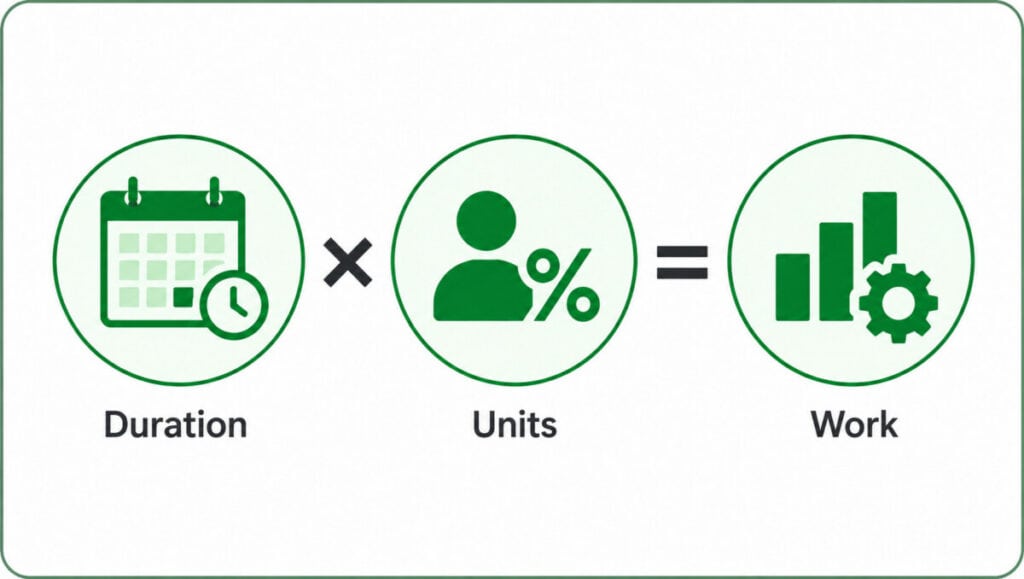
Duration x Units = Work
Microsoft Project expects you to provide two of the three inputs and then calculates the third automatically. To view these fields and observe how task types influence calculations, you need to add the relevant columns to the Task Entry View in the Gantt Chart. Understanding this formula before entering any data will save considerable time and prevent the frustration of unexpected scheduling changes as resources are assigned or adjusted.
Fixed Duration Tasks
Fixed Duration tasks represent work where the time span is constant, regardless of how many resources are assigned to complete it. A one-hour team status meeting, a sprint review, or a mandatory milestone sign-off session all fall into this category because the event itself occupies a defined block of time. Adding more attendees to a one-hour meeting does not shorten it to thirty minutes; the duration remains unchanged while the total work calculated by the tool increases proportionally with each additional resource.
These tasks are especially useful for recurring project ceremonies, phase-gate reviews, and any scheduled event that must happen on a specific date for a specific length of time. The following steps describe how to create a Fixed Duration task in Microsoft Project for Desktop.
To create a Fixed Duration task:
- Insert the Type field in the Gantt Chart view
- Enter the task name
- Change the Type field to Fixed Duration
- Enter the Duration
- Enter the Resources
- Microsoft Project will calculate the effort automatically
Fixed Work Tasks
Fixed Work tasks represent deliverables where the total effort is constant, meaning the amount of work does not change regardless of how the schedule shifts. Writing a project charter, coding a software module, or building a detailed project plan are all examples where the team has estimated a specific number of hours required to complete the output. If a developer estimates a reporting feature at 40 hours and is available 100 percent of the working week, Microsoft Project will schedule that task across five working days.
This task type is particularly valuable when team members provide bottom-up estimates by task, as it honours those estimates while allowing the tool to calculate duration based on actual resource availability. The following steps outline how to configure a Fixed Work task in Microsoft Project for Desktop.
To create a Fixed Work task:
- Insert the Type field into the Gantt Chart view
- Enter the task name
- Change the Type field to Fixed Work
- Enter the Effort in the Work field
- Enter the Resources
- Microsoft Project will calculate the duration automatically
Fixed Units Tasks
Fixed Units tasks keep the resource allocation percentage constant while allowing the scheduling engine to recalculate duration or work as other variables change. This is the default task type in Microsoft Project for Desktop and suits most standard work assignments where a resource is committed at a set percentage of availability. If a resource is allocated at 50 percent and the work estimate changes, the tool adjusts the duration rather than the allocation.
Understanding when to use Fixed Units versus Fixed Work is an important distinction for experienced planners. Fixed Units works well for ongoing, steady-state assignments, while Fixed Work is better suited to discrete deliverables with firm effort estimates. Both types give project managers meaningful control over how the schedule responds to change.
Microsoft Planner: The Modern Evolution
Microsoft Planner is now the unified task and project management platform within Microsoft 365, replacing the older Microsoft Project Online interface for most day-to-day team planning. Planner brings together the functionality previously found in Microsoft To Do, the original Planner boards, and Project for the Web into a single, integrated experience. Teams can now switch between Grid, Board, Timeline, and Goals views within the same plan, making it far more versatile than its predecessor.
Planner supports features that directly complement the scheduling disciplines described in this article. The following capabilities represent the most significant additions for project managers working within the Microsoft 365 ecosystem.
- Timeline View: This Gantt-style view allows project managers to visualise task dependencies, durations, and scheduling conflicts directly within Planner, bringing a level of scheduling clarity that was previously limited to Microsoft Project for Desktop.
- Task Dependencies: Planner now supports finish-to-start dependencies between tasks, enabling teams to model the sequencing logic that is central to accurate project scheduling and critical path planning.
- Copilot Integration: Microsoft Copilot is embedded within Planner, allowing teams to generate task lists, summarise project status, and surface scheduling risks using natural language prompts within the familiar Microsoft 365 interface.
- Goals and Portfolio Views: Project managers can now track progress against strategic objectives and view multiple plans within a single portfolio dashboard, supporting programme-level oversight without switching tools.
- Premium Plans: For teams that require advanced features such as custom fields, baselines, and resource management, Planner’s Premium tier unlocks capabilities that bridge the gap between lightweight task tracking and full project scheduling.
Microsoft Project for Desktop: Advanced Scheduling Remains Essential
While Microsoft Planner handles the majority of collaborative team planning within Microsoft 365, Microsoft Project for Desktop continues to serve as the tool of choice for complex, resource-intensive projects. It remains the definitive environment for applying the Fixed Duration, Fixed Work, and Fixed Units task types described in this article, particularly where precise resource allocation modelling is required. Organisations managing large programmes, government contracts, or multi-resource critical paths will continue to rely on its depth.
Microsoft Project for Desktop also supports features unavailable in Planner, including detailed baseline tracking, earned value analysis, and advanced levelling algorithms. These capabilities are essential when project managers need to model schedule risk, report against a performance measurement baseline, or manage a resource pool across multiple concurrent projects. The two tools are best understood as complementary rather than competing, serving different levels of scheduling complexity within the same Microsoft ecosystem.
Conclusion
Selecting the correct task type in Microsoft Project for Desktop is one of the most impactful decisions a project manager makes during the planning phase. Fixed Duration tasks anchor time-bound events, Fixed Work tasks honour team estimates for deliverables, and Fixed Units tasks maintain steady resource commitments across standard assignments. Together, these types allow the scheduling engine to produce a plan that genuinely reflects how the project will execute.
Microsoft Planner extends these principles into a modern, collaborative environment where teams can manage tasks, track progress, and align work with strategic goals without leaving Microsoft 365. Understanding when to use Planner’s accessible features and when to reach for the advanced capabilities of Microsoft Project for Desktop gives project managers a complete and flexible toolkit for delivering projects with confidence and precision.
FAQs
What is the difference between Microsoft Planner and Microsoft Project for Desktop?
Microsoft Planner is a cloud-based task and project management tool integrated into Microsoft 365, designed for collaborative team planning with views including boards, timelines, and goals. Microsoft Project for Desktop is a standalone scheduling application built for complex projects requiring advanced resource management, baseline tracking, and earned value analysis. The two tools serve different levels of scheduling complexity and are best used together within the broader Microsoft ecosystem.
What does the Duration x Units = Work formula mean in Microsoft Project?
This formula is the core scheduling engine in Microsoft Project for Desktop. Duration represents the calendar time a task takes, Units represents the percentage of a resource’s availability assigned to the task, and Work represents the total effort in hours. You provide two of the three values, and the tool calculates the third, with the result depending on which task type you have selected for that particular task.
When should I use Fixed Work instead of Fixed Duration?
Use Fixed Work when a team member has provided a specific effort estimate for a deliverable, such as 40 hours to develop a software feature. The total effort remains constant, and Microsoft Project adjusts the duration based on how much of the resource’s time is available. Use Fixed Duration when the event itself has a fixed time span, such as a one-hour status meeting, regardless of how many people attend.
Is Microsoft Project still relevant now that Microsoft Planner exists?
Yes. Microsoft Project for Desktop remains the most capable tool in the Microsoft ecosystem for complex scheduling scenarios. It supports critical path method scheduling, detailed resource levelling, baseline comparisons, and earned value management, none of which are available in Planner’s standard tier. For organisations managing large or resource-intensive programmes, Microsoft Project for Desktop continues to be the appropriate and recommended choice.
How do I access the Fixed Duration or Fixed Work fields in Microsoft Project for Desktop?
You need to add the Type field to the Gantt Chart view by right-clicking on the column header area and selecting Insert Column, then choosing Type from the list. Once visible, you can change any task’s type from the default Fixed Units to Fixed Work or Fixed Duration directly in that column. This allows you to apply different task types across your project plan and observe how the scheduling engine responds to each configuration.
Suggested articles:
- Resource Management Using Microsoft Project
- Microsoft Project Tutorial: How to Track Percent Complete
- Build the Right Microsoft Project WBS Levels

Andrew Makar, DMIT, PMP, CSM is an IT director with delivery experience across projects, programs and portfolios in Digital Marketing, Automotive, Software and Financial Management industries. He is an enthusiastic leader who effectively translates project management theory into practical application. His area of interest and practice is in implementing Agile processes and SCRUM techniques to deliver better software to his customers. Find out more about Andrew on andymakar.com and please reach out and connect with Andrew on LinkedIn.