
A product shoot wraps on Thursday, and by Monday the account manager is still hunting for the approved selects across three drives. The retoucher waits for a file name, and the client waits for a proof. None of that delay comes from creative work. It comes from hand-offs nobody has written down. Automation can remove much of it, but only once the workflow is mapped.
- Manual Hand-Offs Drain Agency Hours: Creative agencies lose hours on manual hand-offs, file management, and approvals, and Asana’s Anatomy of Work Index puts 60% of a worker’s time on work about work.
- Map the Workflow Before Automating: Draw every stage from brief to delivery first, then automate only the steps that repeat on every project.
- Photo-Heavy Projects Gain the Most: Shoots that return hundreds or thousands of images benefit most from automated editing, culling, and file delivery.
- Track Turnaround and Revision Rounds: Compare turnaround time and the number of revision rounds with a baseline to see what the automation actually changed.
The fix is to treat automation as part of project management, with the project manager owning the workflow and the tools serving it. This guide starts with where agency projects stall, then maps a typical five-stage workflow in a simple table. From there, it automates intake, files, production, and approvals in turn, and closes with the rollout, the numbers to track, and a pre-launch checklist.
Where Creative Agency Projects Lose Time
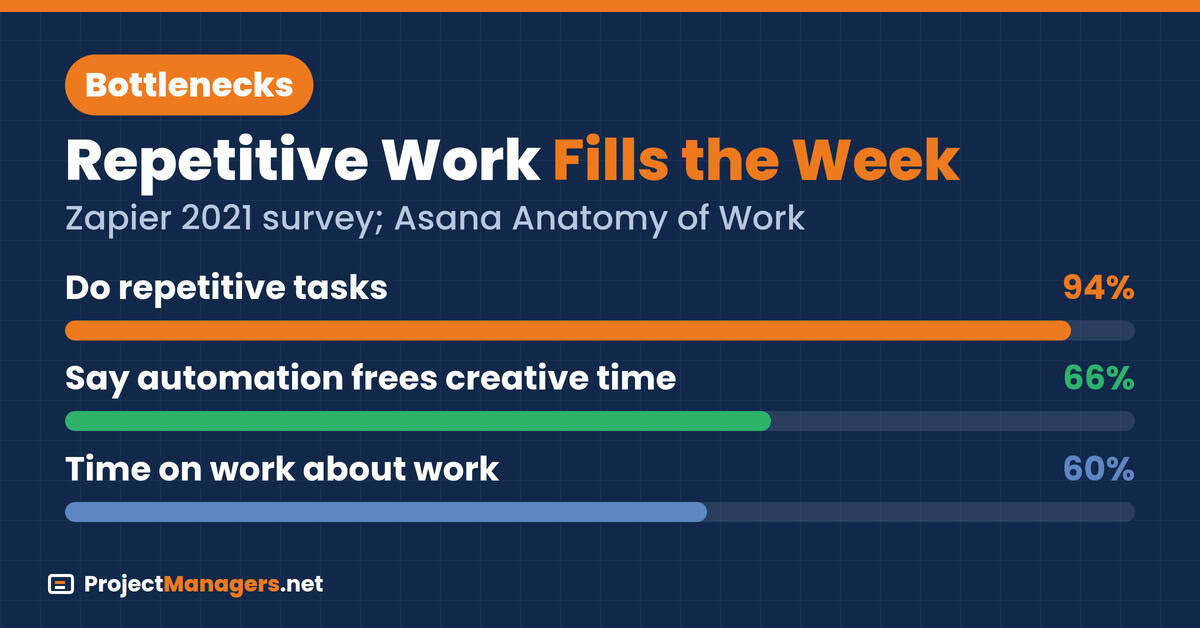
Most agency delays start between tasks, not inside them. Files land in personal folders, approval steps live in one person’s head, and the same resizing job is redone by hand for every channel. Then the client asks for a change two days before launch. Zapier’s 2021 automation survey found that 94% of small business employees perform repetitive, time-consuming tasks in their role.
Four patterns show up on almost every stalled creative project:
- Scattered Files: Raw footage, drafts, and final assets sit across drives, inboxes, and chat threads, so people rebuild context before they can start.
- Unclear Approval Steps: Nobody knows whether the creative director or the client signs off next, so finished work waits in a queue no one owns.
- Repetitive Production Tasks: Resizing, exporting, renaming, and batch color fixes repeat on every job and pull designers away from the concept itself.
- Last-Minute Client Changes: Feedback arrives late and through several channels, so the team reworks files without a clear record of what was asked.
Map Your Project Workflow Before Automating
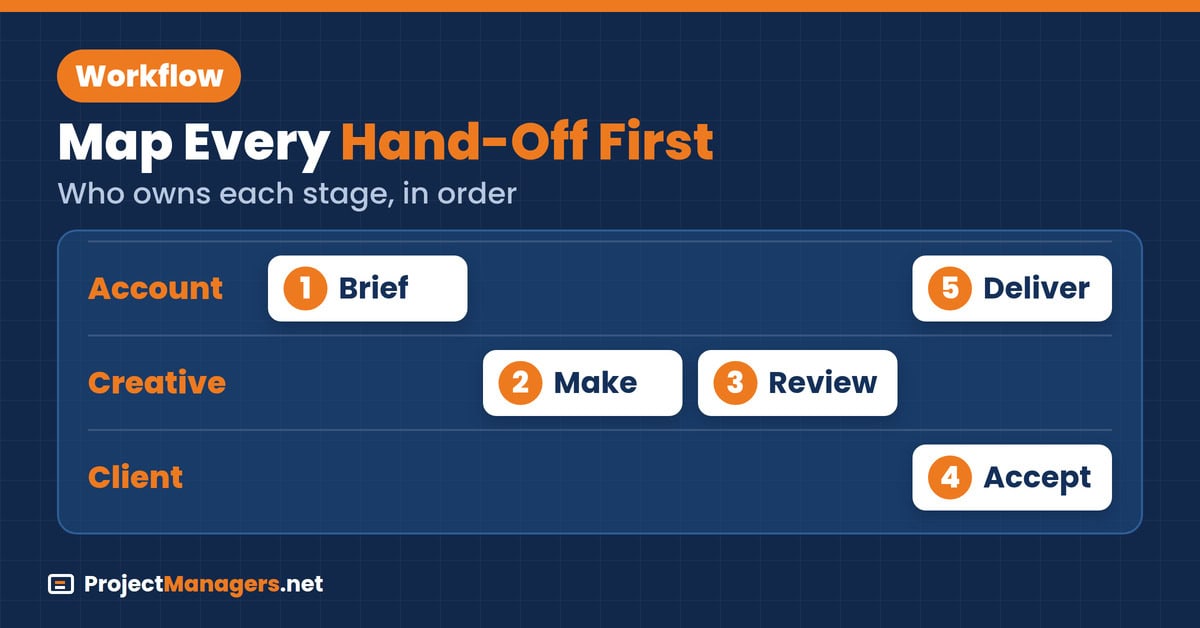
Automating a process nobody has drawn tends to speed up the confusion. Start by listing the stages a typical project passes through, usually the brief, production, internal review, client approval, and delivery. For each stage, write down who owns it, what triggers it, and what it hands over. Then mark the steps that repeat on every job and the places where work sits waiting.
A simple workflow table for a typical campaign project:
Sample Creative Project Workflow Map
| Stage | Owner | Repeats Every Project? | Common Bottleneck | Automation Option |
|---|---|---|---|---|
| Brief | Account manager | Yes | Missing details from the client | Intake form that builds the brief |
| Production | Designer or photographer | Partly | Resizing and exporting by hand | Batch actions and export presets |
| Internal review | Creative director | Yes | Drafts waiting for a reviewer | Review task assigned on upload |
| Client approval | Client contact | Yes | Slow replies and scattered comments | Proofing link with a due date and reminders |
| Delivery | Project manager | Yes | Wrong version sent | Final-only delivery folder |
Read the table from the right-hand column. A step that repeats on every project and follows a clear rule, such as creating a review task when a draft is uploaded, is a strong first candidate. A step that needs judgment, such as choosing the hero image, stays manual. Bottlenecks caused by unclear ownership need a decision first, because automating them only hides the gap.
Automate Project Intake and Briefs
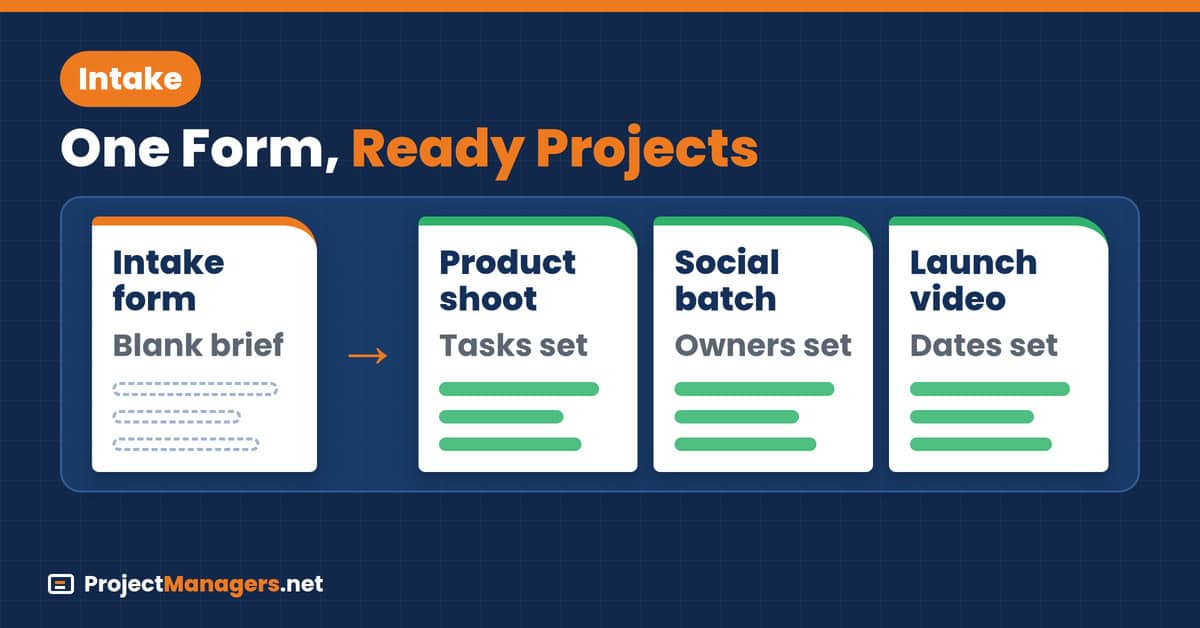
Every project starts with information, and much of the rework traces back to a brief that was missing something. Replace email requests with one intake form that asks for the deliverables, formats, deadline, budget, approvers, and brand assets. When the form is submitted, a project template can create the project, the standard tasks, and their owners, so nothing waits for manual setup.
Three pieces make intake run without anyone re-typing requests:
- One Intake Form: Use a single form per service line, with required fields for format, deadline, and approver, so incomplete requests cannot be submitted.
- Project Templates: Keep a template for each repeat project type, such as a product shoot or a social campaign, with tasks, durations, and dependencies already set.
- Automatic Task Creation: Connect the form to your project management tool, so each submission creates the project, assigns the brief review, and notifies the account lead.
The payoff is time that never shows up on a timesheet. Asana’s Anatomy of Work Index estimates that the average knowledge worker spends 209 hours a year on duplicative work, and copying request details from an email into a project tool is a textbook case. A form that feeds the template removes that step and keeps a record of exactly what the client asked for.
Automate File Management and Asset Delivery
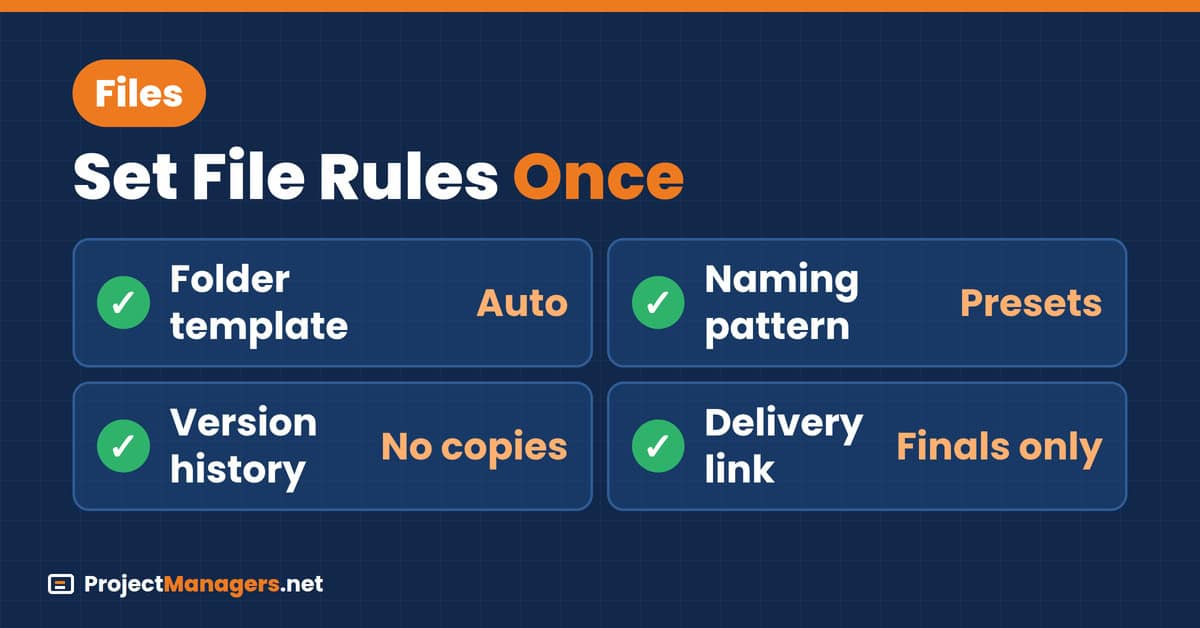
File chaos is the quietest cost on a creative project. McKinsey’s research on knowledge work estimated that workers spend nearly 20% of the workweek looking for internal information or tracking down colleagues who can help. On an agency project, much of that search is for the right file. A fixed folder structure, created automatically with every new project, removes most of the guesswork.
For photo-heavy projects such as product shoots, events, or campaigns, automated photography workflow solutions can store, organize, and share large image sets in the cloud, so editors, account managers, and clients work from the same files.
Set these rules once and let the tools apply them:
- Folder Templates: Create the same folders for every project, such as brief, raw, working, review, and final, the moment the project is set up.
- Naming Rules: Agree on one file name pattern, such as client, project, asset, and version number, and use export presets that apply it automatically.
- Version Control: Keep older versions inside the storage system instead of in renamed copies, so a file called final_v3_really_final never reaches a client.
- Client Delivery Links: Share finals through expiring links to the final folder only, so clients download approved files and never see working drafts.
Automate Repetitive Production Tasks
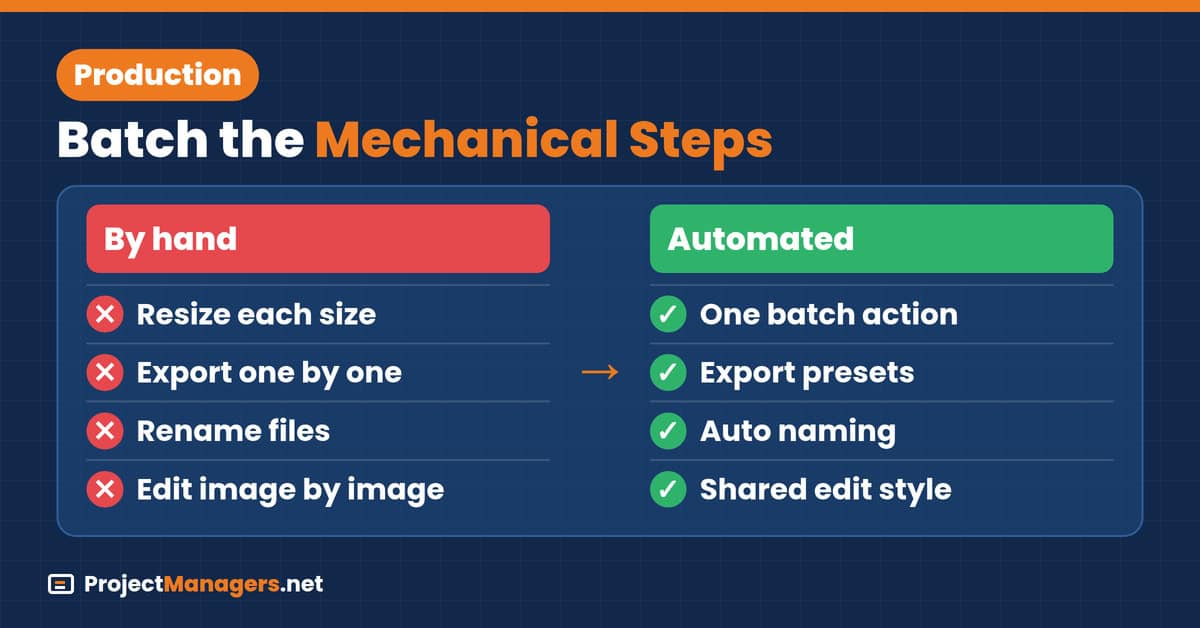
Production work splits into creative decisions and mechanical steps. Choosing the frame, the crop, and the mood needs a person. Resizing a hero image into a dozen channel formats, converting color profiles, and exporting each file does not. Batch actions and export presets can handle that second group, and 66% of respondents in Zapier’s survey said automation let them focus on more creative tasks.
Agencies that deliver hundreds of edited images per shoot can use photography workflow automation software to apply a consistent editing style and cut production time from days to hours.
Photo-heavy work shows the gain most clearly. A single product or event shoot can return thousands of frames, and culling them, applying the house style, and exporting web and print versions are the same steps every time. Automating the first pass leaves the editor reviewing and refining the selection instead of building it, which is where their judgment actually matters on the project.
Automate Reviews and Client Approvals
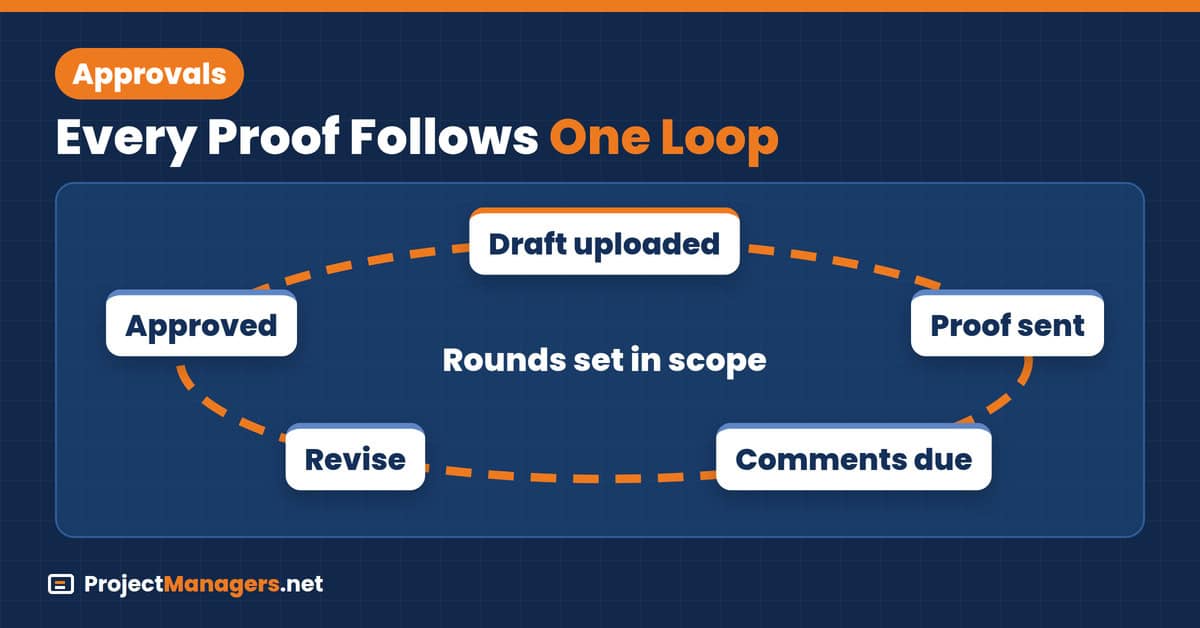
Approvals stall when nobody knows who decides, by when, or how many rounds remain. Online proofing tools fix much of that by pinning comments to the file, tracking versions, and recording who approved what. Automation adds the timing: when a draft is uploaded, the review task goes to the right person with a due date, and reminders go out before the deadline slips.
Build these rules into the approval step:
- One Proofing Link: Send every draft through the same proofing tool, so feedback sits on the file rather than in email threads and chat messages.
- Approval Deadlines: Attach a due date to every review task, and let the tool send reminders two days and one day before it.
- Named Approvers: List one decision-maker per stage in the brief, and route each proof to that person automatically.
- Revision Limits: Write the number of included rounds into the scope, show the round count on each proof, and log extra rounds as change requests.
Illustrative Scenario: A five-person design agency ran social campaigns where client feedback arrived by email, chat, and phone. After moving drafts to a proofing tool with a 48-hour comment window and automatic reminders, the account lead stopped chasing replies by hand. Rounds beyond the two in the scope were logged as change requests, which made the extra work visible before invoicing.
Roll Out Automation One Project at a Time
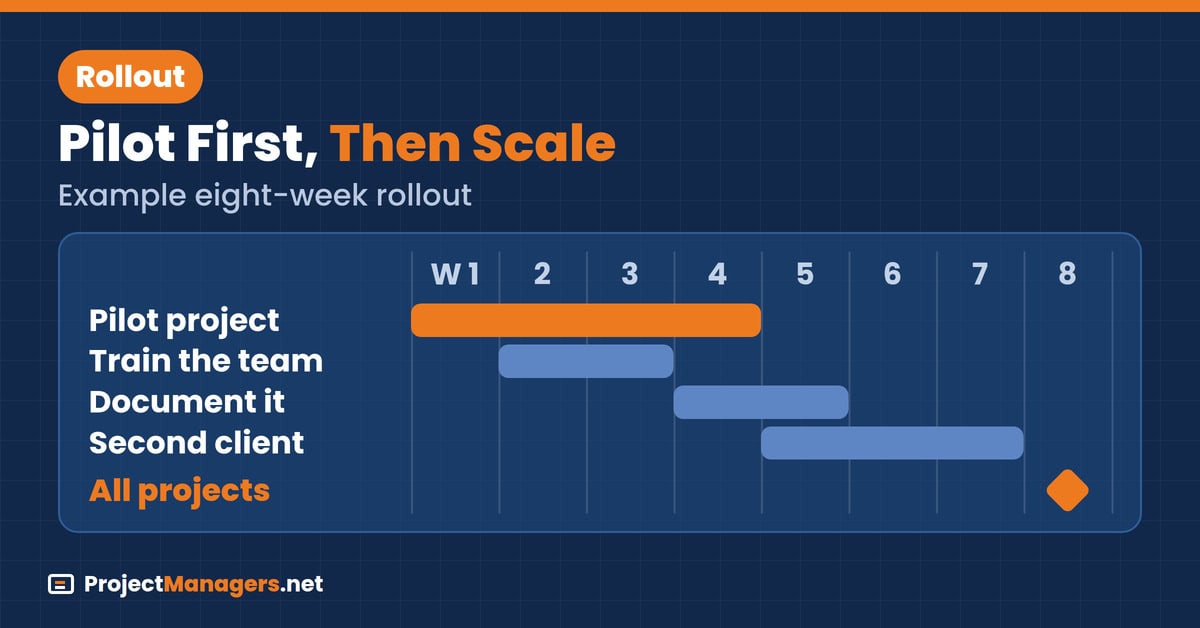
A new workflow is a change project for the team, so roll it out in stages. Pick one client project with a cooperative contact and a typical scope as the pilot, and run it end to end with the new intake form, folders, presets, and proofing steps. Note what breaks, fix it, and only then bring a second client into the new process.
Four steps keep the rollout on track:
- Pilot on One Project: Choose a repeat job type, such as a monthly social content batch, so results are easy to compare with earlier months.
- Train with Real Work: Show each role the steps that change for them, using the pilot’s own files rather than a generic tool demo.
- Document the Process: Write a one-page workflow for each project type, with owners, triggers, and the tools used at every stage.
- Earn the Team’s Support: Ask designers and photographers which repetitive steps annoy them most, and automate one of those first.
Track Turnaround, Revisions, and Margin
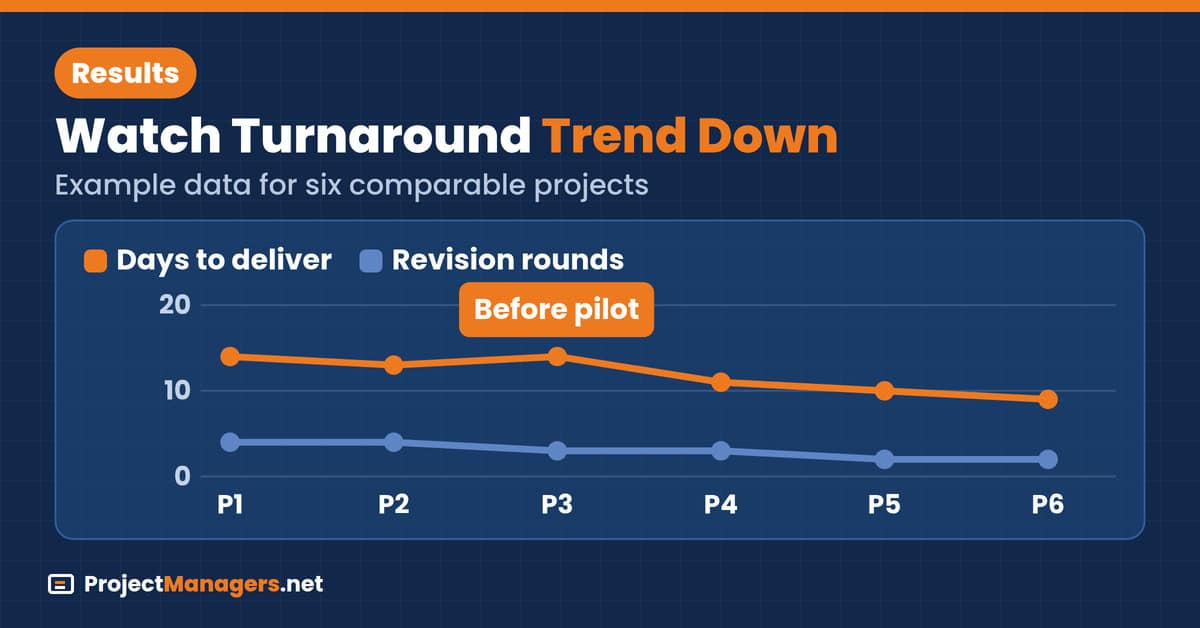
Measure the workflow before the pilot starts, or the gains will be guesses. Record four numbers on the last few comparable projects: turnaround time from brief to delivery, the number of revision rounds, hours logged per project, and margin per project. Then track the same numbers on every automated project, using the same time-tracking categories, so the comparison holds up.
Define each measure the same way every time:
- Turnaround Time: Working days from the approved brief to final delivery, measured separately for each project type.
- Revision Rounds: The number of review cycles before client approval, counted from the proofing tool’s history.
- Hours Saved per Project: Logged hours on comparable projects before and after, split into production, admin, and review time.
- Margin per Project: The fee minus the cost of logged hours and tools, which shows whether the time saved reaches the bottom line.
Review the numbers with the team after the pilot and again after a full quarter. They sit alongside the wider project execution metrics most agencies already report, such as on-time delivery and budget variance. If turnaround drops but revision rounds rise, the automation may be pushing work out faster than clients can review it, and the approval rules need another look.
Creative Workflow Automation Checklist
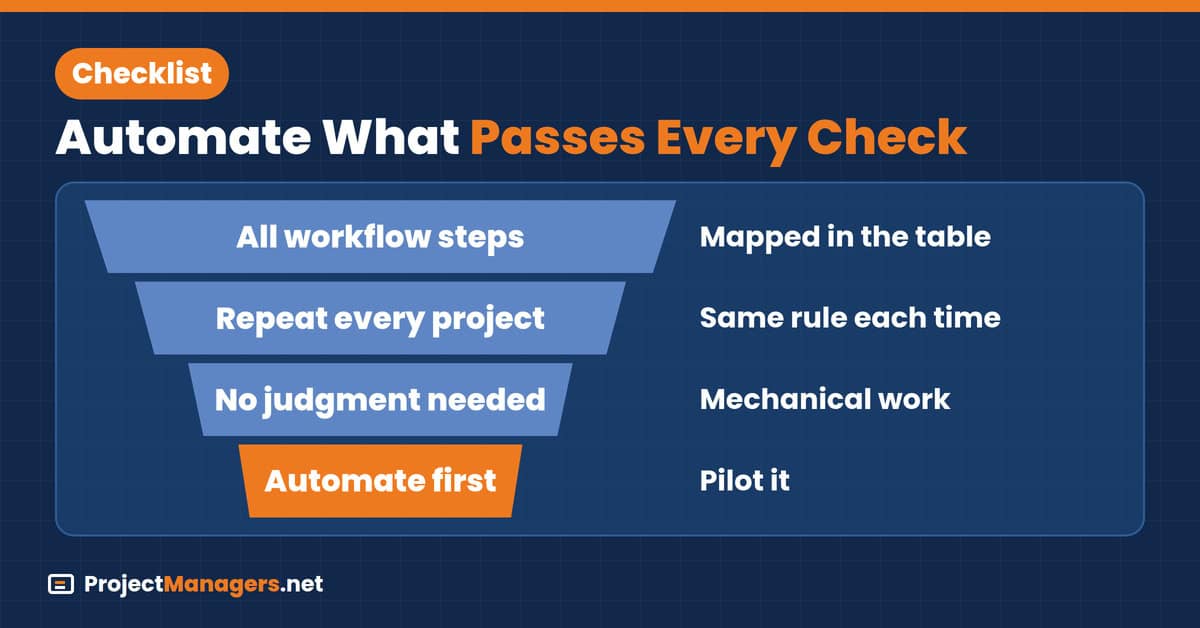
Run through these checks before switching on any automation, and again after the pilot project ends. Each item should have an owner and some evidence behind the tick, such as a mapped workflow, a tested form, or a baseline report. If an item stays open, keep that step manual for now, because a half-configured rule tends to create more follow-up work than it removes.
- Mapped Steps Stop Automating Confusion: Writing the workflow down first makes it less likely that a rule speeds up a broken hand-off.
- A Baseline Makes Gains Visible: Recording the numbers before the pilot helps show what actually changed afterward.
- Briefed Teams Use the New Steps: Showing each role its changes reduces the chance of people working around the new process.
Video: An Agency Workflow Built in ClickUp
Emma’s Productivity Lab published this 18-minute tutorial in February 2026. It walks through structuring ClickUp for an agency, separating client and internal projects, designing a simple task flow from intake to delivery, and handling deadlines and approvals. It also shows how to add automations without overengineering the setup, and the same five stages apply in any project tool.
Clickup Agency Workflow Setup Tutorial 2026 (ACTUAL AGENCY WORKFLOW) (Emma’s Productivity Lab, 18:31)
A walkthrough of an agency workflow in ClickUp: client and internal projects, a task flow from intake to delivery, deadlines and approvals, and simple automations.
Creative Agency Workflow Automation FAQs
Creative Agency Workflow Automation FAQs
Which Creative Agency Tasks Should You Automate First?
Start with steps that repeat on every project and follow a clear rule, such as turning intake forms into projects and tasks, creating standard folders, sending review reminders, and exporting standard image sizes. Leave anything that needs creative judgment, such as concept selection or final edits, with your team.
Will Automation Reduce Creative Quality?
Not when it is limited to mechanical steps. Automation handles resizing, file naming, routing, and reminders, while people keep the creative decisions. A shared editing style or preset can make output more consistent across a large image set, but a person should still review the results before delivery.
How Do You Get Designers and Photographers to Adopt New Tools?
Involve them early. Ask which repetitive steps frustrate them, automate one of those first, and train with real project files instead of a feature tour. A pilot on one client project lets them see the time saved before the new process becomes the standard for everyone.
What Is Workflow Automation in a Creative Agency?
It is the use of rules and software to move project work forward without manual steps, such as creating tasks from requests, filing assets, applying presets, routing proofs, and sending reminders. The project manager designs the workflow, and the tools carry out the steps that repeat.
Do You Need New Software to Automate Agency Workflows?
Often not at first. Most project management, cloud storage, and proofing tools already include forms, templates, rules, and integrations. Map the workflow, check what your current tools can do, and buy only for the gaps that remain, such as bulk image editing for photo-heavy work.
How Many Revision Rounds Should a Creative Project Include?
Agencies set their own number, and what matters most is that it is written into the scope or contract. Show the round count on each proof so the client can see it, and treat any further rounds as change requests with their own time and cost.
How Do You Know If Workflow Automation Is Working?
Compare turnaround time, revision rounds, hours per project, and margin per project with the baseline from projects completed before the pilot. Check after the pilot and again after a quarter, and ask the team whether the new steps removed work or simply moved it elsewhere.
Conclusion
The agencies that win back hours through automation are rarely the ones with the most tools. They are the ones where a project manager owns the workflow, knows every hand-off, and lets software handle only the steps that repeat. Creative judgment, from the first concept to the final selection of images, stays with the people the client hired in the first place.
If the next quarter holds several repeat projects, such as monthly product shoots or campaign refreshes, map one of them this week with the workflow table. Automate intake and approvals on that single project, record the baseline before it starts, and compare the numbers when it ends. That one comparison will say more about what to automate next than any vendor demo.
Suggested Articles:
- How Project Managers Can Automate the Workflow From Lead to Deposit
- How QR Codes Are Revolutionising PM Workflows
- Building a Delivery Workflow That Scales

Peter Kanai is a Google-certified freelance writer with over a decade of experience crafting high-quality content for business websites, blogs, and SEO & email marketing campaigns. His on-demand writing services are all about helping businesses expand their online presence and achieve their objectives. With a proven track record in delivering results-driven content, Peter is the go-to freelance writer for business owners seeking a strategic partner to help them grow their brand online.