
Recurring administrative activities are a reality in every project and programme. The question is not whether they exist, but where they belong: in a project schedule that models delivery and resource constraints, or in a lightweight task management tool designed for reminders and coordination. Getting this distinction right keeps your schedule focused, your critical path visible, and your team’s attention on the work that actually drives delivery.
This article reflects the current Microsoft 365 ecosystem, positioning Microsoft Planner as the recommended solution for recurring team meetings and lightweight task tracking, while preserving guidance for scenarios in which schedule-level entries in Microsoft Project or Project Online remain the appropriate choice.
The Case Against Recurring Tasks in Your Project Schedule
Routine meetings such as weekly status calls do not sit on a project’s critical path, and no project has ever missed a launch date because a status meeting was skipped. Placing these activities in a formal schedule model adds administrative overhead without producing any meaningful insight into delivery progress or project risk. The practical alternative is to manage recurring meetings through Microsoft Outlook or a corporate calendar system.
Routing coordination activities away from the project schedule reduces the maintenance burden on the project manager and ensures the schedule remains a reliable model of the work required to complete the project. A schedule cluttered with routine meeting tasks obscures delivery progress, inflates plan complexity, and forces the project manager to maintain entries that carry no consequence for milestones or launch dates.
When Recurring Tasks in the Schedule Are Justified
Some organisations require all billable hours to be tracked against project tasks, or operate under formal governance frameworks that require every meeting to be logged as a schedule entry. In these environments, recurring tasks in the project schedule serve a legitimate compliance and reporting purpose, and excluding them is not an option.
The best practice in these situations is to isolate recurring administrative tasks in a dedicated section of the plan, clearly separated from the delivery tasks that constitute the critical path. A separate Work breakdown structure (WBS) summary labeled Administration or Non-Critical keeps routine meetings visible for reporting purposes without allowing them to generate dependency conflicts, distort resource levelling results, or obscure the path to project completion.
Meetings That Belong on the Critical Path
Not all meetings are administrative. Certain formal touchpoints carry genuine delivery weight and must appear in the project schedule as milestones or gated approvals. These are the sessions where a decision, sign-off, or formal acceptance directly determines whether downstream work can begin, and omitting them from the schedule creates a real risk of missed dependencies.
The following meeting types warrant formal inclusion as schedule items:
- Milestone Sign-Off Meetings: These sessions mark the formal acceptance of a phase or deliverable, and downstream work cannot begin until sign-off is obtained. They belong on the critical path because they are genuine predecessor dependencies, not coordination activities.
- Customer Acceptance Reviews: Formal client or sponsor approval before a launch or phase transition is a non-negotiable checkpoint. Scheduling this as a milestone ensures accountability and prevents the approval from being treated as an afterthought in the final days of delivery.
- Tollgate and Governance Reviews: Stage-gate processes require executive or steering committee approval before a project can advance from one phase to the next. These reviews are critical path items because project continuation depends directly on their outcome.
- Steering Committee Decision Meetings: When a project requires formal decisions on scope, budget, or risk escalations, those sessions must appear in the schedule. They drive consequential decisions that affect delivery direction and cannot be treated as routine coordination.
Quick Decision Guide: Microsoft Planner Versus Microsoft Project
Before choosing where to create your recurring tasks, it helps to understand what each tool is designed to do. Microsoft Planner is optimised for people and reminders, while Microsoft Project is optimised for schedule modelling, resource levelling, and baseline control. Using each tool for its intended purpose produces cleaner plans and more reliable reporting across your programme.
The table below summarises the key differences to inform your decision:
| Criteria | Microsoft Planner | Microsoft Project |
|---|---|---|
| Setup ease | High; set Start and Due dates, then select Repeat | Moderate; uses the Recurring Task dialogue in Gantt view |
| Occurrence handling | Shows only the active occurrence; next instance created on completion | Milestone approvals, governance gates, and billing compliance |
| Resource and billing | Supports resource assignment for light utilisation tracking | Best for formal resource levelling, baselines, and billing |
| Best use | Weekly status meetings, checklists, recurring admin work | Milestone approvals, governance gates, billing compliance |
| Levelling priority | No special priority | Highest levelling priority; instances not split during levelling |
How to Add Recurring Tasks in Microsoft Planner
Microsoft Planner is the recommended tool for recurring team meetings and routine administrative work. Its recurrence model is built for coordination rather than schedule modelling, and it integrates directly with Microsoft Teams and Outlook to manage invitations and reminders without requiring manual intervention from the project manager.
The steps below walk through creating a 12-week weekly status meeting recurring every Monday:
- Open Planner and select the plan where the recurring meeting tasks will live.
- Click Add Task or open an existing task to convert it to a recurring series.
- Enter the task name, for example: Weekly Team Status Meeting.
- Set the Start date and Due date for the first occurrence.
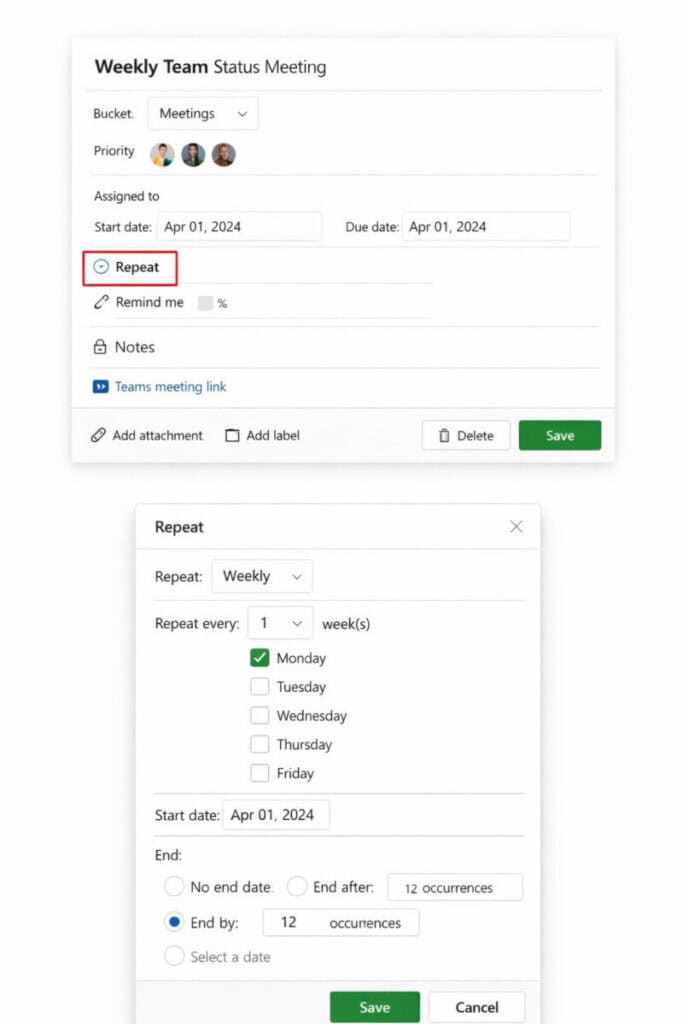
- Click Repeat in the task details pane to open the recurrence settings.
- Select Weekly, set the interval to every one week, and check Monday as the repeat day.
- Under End, select End after and enter 12 occurrences, or set a specific end date.
- Assign the relevant team members and add a Teams meeting link or agenda in the task description.
- Click Save to activate the series.
Planner Repeat dialog: set recurrence to Weekly, every 1 week, Monday checked, end after 12 occurrences
Once saved, Planner displays only the active occurrence in the plan board. When a team member marks the task complete, Planner automatically creates the next occurrence in the series, keeping the board uncluttered without requiring any manual follow-up from the project manager.
Planner task details: assigned members, Teams meeting link, and checklist for agenda and minutes
Managing and Stopping a Planner Recurrence Series
Planner recurrence is tied to the due date of the active task. If the due date is removed from the active occurrence, the recurrence stops entirely. This is an important behaviour to document within the task description so that team members do not inadvertently break the series when editing individual occurrences.
To stop a series intentionally, open the active task, navigate to the recurrence settings, and either set an end date or choose the option to end the series. Individual occurrences can be edited independently, allowing changes to the agenda, attendees, or meeting link without affecting the remaining instances. Documenting the recurrence rules in the task description field is a simple safeguard against accidental termination.
How to Add Recurring Tasks in Microsoft Project
When a recurring meeting must appear in the formal project schedule because it is a governance gate, billing requirement, or milestone dependency, Microsoft Project remains the appropriate tool. The Recurring Task dialogue provides full control over series configuration, and the resulting tasks integrate with the schedule’s dependency network and resource model.
The steps below apply to the desktop environment and Project Online:
- Open the project file and switch to Gantt Chart view.
- Select the row in the task list where the recurring task should be inserted.
- On the Task tab in the ribbon, click Recurring Task to open the Recurring Task Information dialogue.
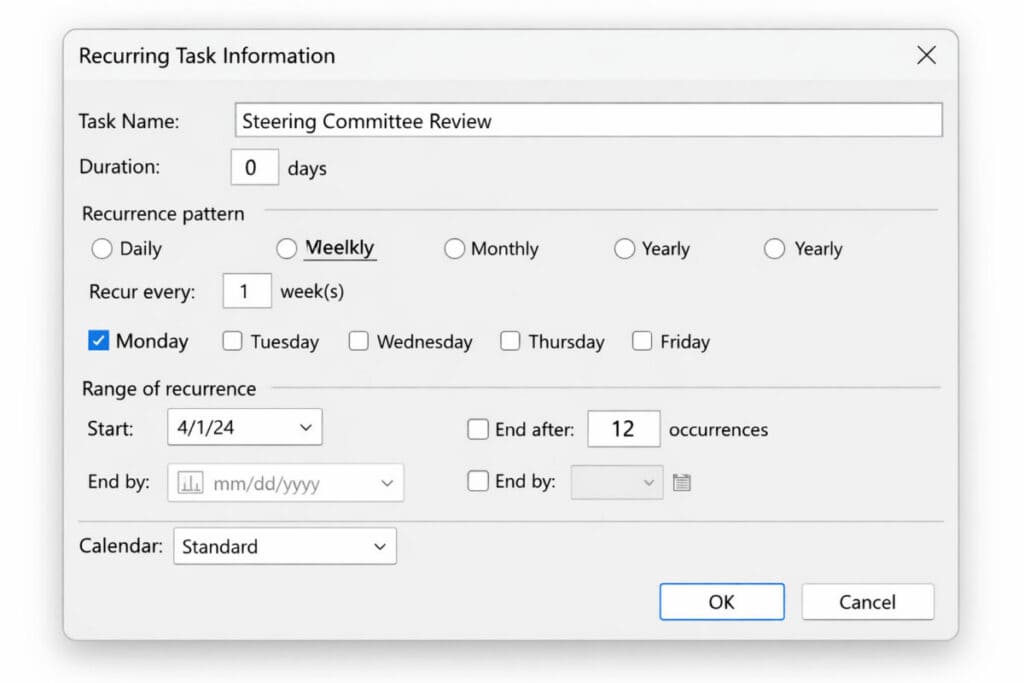
- Enter the task name, for example: Steering Committee Review.
- Set the duration. Use 0d for a milestone approval or 0.5d for a half-day governance session.
- Under Recurrence Pattern, select Weekly, set the interval to every one week, and check the meeting day.
- Set the Range of Recurrence by entering a Start date and either an End after count or an End by date.
- Optionally assign a task calendar if the meeting follows non-standard working hours.
- Click OK. Microsoft Project creates a summary recurring task with individual sub-task instances for each occurrence.
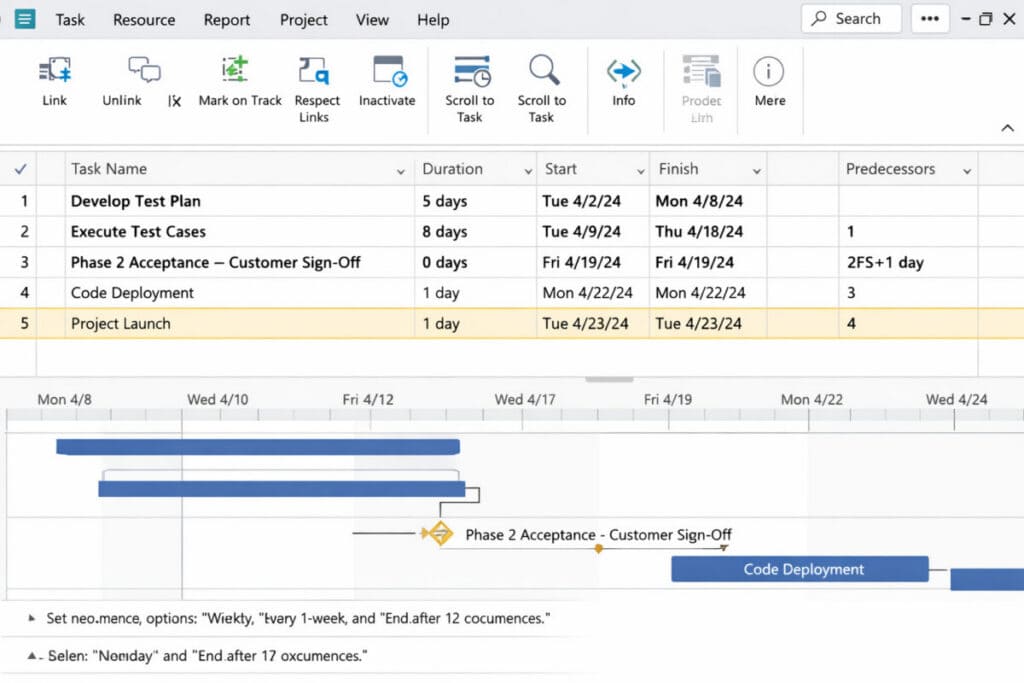
- Link the meeting task to the deliverable it gates using a Finish-to-Start dependency in the Predecessors field.
- Assign resources if hours must be captured for billing or utilisation.
- Save and publish if using Project Online.
Project Recurring Task Information: create a weekly recurring milestone with 12 occurrences
For formal approvals, link the recurring task to the deliverable it gates using a Finish-to-Start dependency in the Predecessors field. This ensures the approval is visible in the dependency network and appears correctly in critical path analysis across the full project schedule.
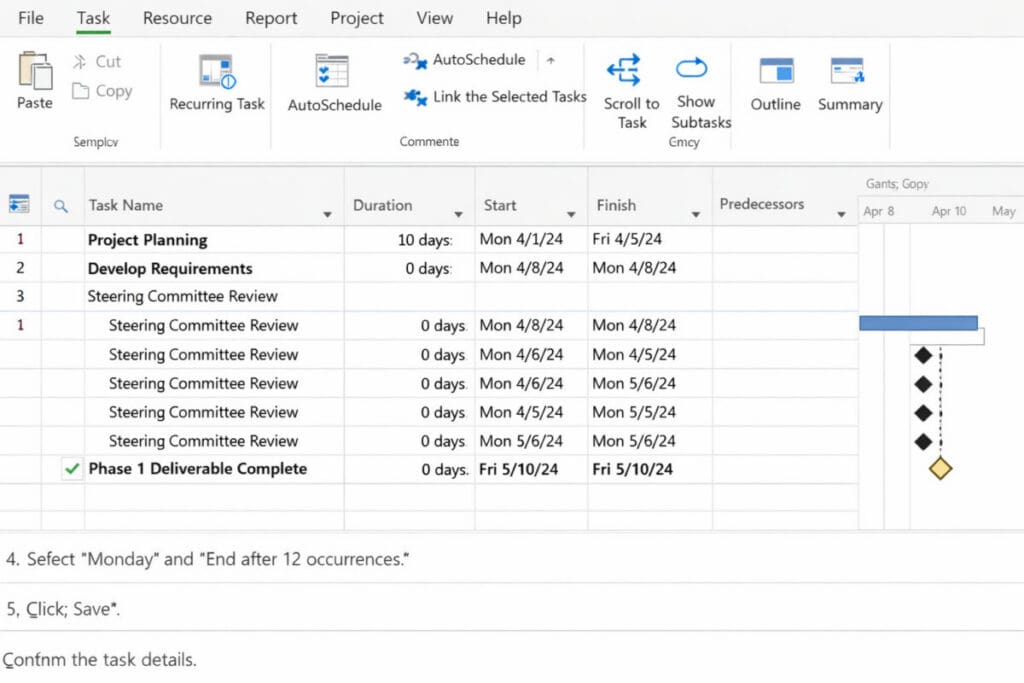
Gantt view: recurring meeting series expanded and linked to a deliverable as a predecessor
Important Behaviours in Microsoft Project
Microsoft Project treats recurring tasks as high-priority schedule items during resource levelling. By default, recurring task instances are not split during levelling, which means they can displace other work in the schedule if resource conflicts arise. This behaviour is manageable when recurring tasks represent genuine milestones, but it can distort baselines when used for routine administrative meetings that carry no delivery weight.
The safest approach for formal approvals is to use zero-duration milestones rather than effort-based recurring tasks. This makes the approval visible on the critical path without consuming resource hours or triggering levelling conflicts. Reserve effort-based recurring tasks for situations where hours must be formally captured for billing or utilisation reporting, and always isolate them in a non-critical WBS section.

Project milestone: zero-duration sign-off linked as predecessor to the deliverable
Best Practice Structure: Keep Admin Separate from Delivery
Separating administrative and delivery work within your plan is the single most effective way to preserve schedule integrity while still meeting governance and reporting requirements. Regardless of whether you use Planner or Project for recurring tasks, this structural principle applies at every level of project complexity.
These recommendations apply across both tools and all project sizes:
- Dedicated Administrative Sections: Create a separate bucket in Planner or a distinct WBS summary in Project labeled Administration or Governance for all recurring administrative tasks. This prevents routine meetings from appearing in delivery-focused views and keeps the critical path clean and readable.
- Utilisation Estimates Over Task Logging: Estimate resource availability at a portfolio level, typically around 80 percent, rather than logging every meeting as an individual task. This produces a more realistic and maintainable schedule model without requiring the project manager to track every administrative touchpoint.
- Milestone-Only Approvals in Project: For formal sign-off meetings in Microsoft Project, use zero-duration milestones rather than effort tasks wherever billing does not require hour tracking. This preserves critical path visibility without introducing resource levelling conflicts.
- Teams and Outlook Integration for Planner: Link Planner recurring tasks to Teams channels and Outlook calendar invites so that meeting reminders and invitations are managed automatically. This reduces coordination overhead and ensures attendees receive timely notifications without manual follow-up from the project manager.
Ready-to-Paste Templates
Having a consistent task template for both tools reduces setup time and ensures that recurring tasks are configured correctly and documented clearly from the outset. The two templates below can be copied directly into your plan. Use these two templates to standardise recurring task setup across Planner and Project:
Planner Task Template
| Field | Details |
|---|---|
| Title | Weekly Team Status Meeting, [Project Name] |
| Description | Agenda: 1) Risks 2) Blockers 3) Decisions |
| Teams Link | [Paste Teams meeting link] |
| Recurrence | Weekly on Monday |
| Owner | Project Manager |
| Notes | Capture action items in the Microsoft Planner checklist |
| Checklist Items | Prepare agenda; Review open risks; Update RAID log; Send minutes |
Project Task Template
| Field | Details |
|---|---|
| Task Name | Phase 2 Acceptance, Customer Sign-off (Milestone) |
| Duration | 0d |
| Predecessors | [Deliverable task ID] |
| Notes | Formal acceptance required before Phase 3 starts. Attach the acceptance form to the task notes field before the review session. |
Conclusion
Microsoft Planner is the right tool for recurring team meetings and routine administrative tasks. Its occurrence model keeps plans uncluttered, its integration with Teams and Outlook manages reminders automatically, and its flexibility allows individual occurrences to be edited without disrupting the series. Reserving Microsoft Project for formal milestones, approvals, and governance gates ensures the project schedule remains a reliable model of delivery.
Where organisational or billing requirements demand that recurring activities appear in the project schedule, isolating them in a dedicated non-critical section preserves schedule integrity while meeting compliance obligations. Applying this distinction consistently across your projects is one of the clearest markers of a mature and disciplined project management practice.
Frequently Asked Questions
What is the difference between Microsoft Planner and Microsoft Project?
Microsoft Planner is a lightweight task and team management tool within the Microsoft 365 ecosystem, designed for coordination, recurring meetings, and team-level tracking. Microsoft Project is a formal schedule modelling tool used for complex, resource-levelled plans with baseline and critical path management. Planner is the recommended default for recurring administrative work, with Project reserved for formal delivery schedules requiring resource levelling or billing compliance.
Should I add weekly status meetings to my project schedule?
In most cases, no. Weekly status meetings do not affect the critical path, and adding them to the schedule creates unnecessary administrative overhead. Route routine meetings through Microsoft Planner or Outlook instead. The exception applies when your organisation requires all hours to be tracked against project tasks for billing or reporting, in which case a separate non-critical administrative section in the schedule is the appropriate approach.
Should I assign resources to Planner recurring tasks if I need utilisation data?
Yes. Assign team members in Planner and use timesheets or capacity reports to capture hours against the recurring tasks. For formal billing requirements, mirror the administrative tasks in Microsoft Project or your organisation’s timesheet system. This ensures utilisation data is available for reporting without compromising the integrity of the formal project schedule.
How do I stop a recurring task series in Microsoft Planner?
Open the active task in Planner, navigate to the recurrence settings, and either set a specific end date or choose the option to end the series. You can also delete the active occurrence and select the option to terminate the entire series. Note that removing the due date from an active occurrence will stop the recurrence, so document the series rules in the task description to prevent accidental termination by team members.
Will recurring tasks distort my resource levelling in Microsoft Project?
They can. Microsoft Project assigns recurring tasks the highest priority level and does not split them during resource levelling by default, meaning they can displace delivery work if placed in the main schedule. Mitigate this by isolating administrative recurrences in a separate WBS section labeled Non-Critical, and by using zero-duration milestones for approval meetings that do not require effort hour tracking.
Suggested articles:
- Using Microsoft Project Fixed Duration, Work, and Unit Type Fields
- Resource Management Using Microsoft Project
- Microsoft Project Tutorial: How to Track Percent Complete

Andrew Makar, DMIT, PMP, CSM is an IT director with delivery experience across projects, programs and portfolios in Digital Marketing, Automotive, Software and Financial Management industries. He is an enthusiastic leader who effectively translates project management theory into practical application. His area of interest and practice is in implementing Agile processes and SCRUM techniques to deliver better software to his customers. Find out more about Andrew on andymakar.com and please reach out and connect with Andrew on LinkedIn.