
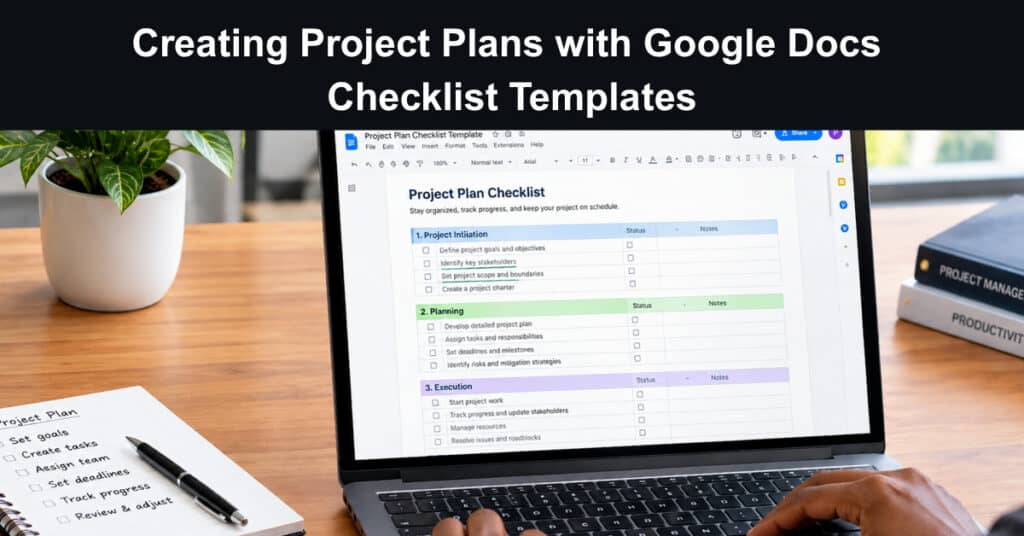
Most project plans fail due to execution gaps rather than poor strategy. When tasks are agreed upon in meetings but never documented, deadlines inevitably slip. Google Docs checklist templates solve this by transforming verbal agreements into a shared, real-time, tickable record. This allows every team member to monitor progress and edit updates instantly, without the friction of learning complex new platforms.
The appeal lies not in sophistication but in reduced friction. A checklist inside a document people already use is far more likely to succeed than a standalone tool nobody opens. The trade-off is structure: a loose checklist generates activity without sequence, while a poorly built one obscures ownership and deadlines. Building plans that withstand real-world deadlines is what distinguishes the two.
Why Use Google Docs Checklist Templates for Project Planning?
Google Docs combines three things a planning document needs and most tools split apart. Formatting is simple enough that nobody needs training, sharing works at the level of individual comments rather than whole-file permissions, and the checkboxes turn completed work into a visible signal rather than an unverifiable claim. Those three properties explain why the format keeps being used despite its limits.
Three practical advantages explain why teams keep using Google Docs checklist templates:
- Organise Tasks Visually: Breaking a complex delivery into small tickable lines makes progress legible at a glance. By learning how to add checkboxes in Google Docs, a manager can see which workstreams are moving and which have stalled.
- Collaborate Without Version Chaos: The whole team edits one live document instead of emailing attachments back and forth, which removes the most common source of quietly conflicting project plans.
- Track Progress Honestly: Completed checkboxes give a factual record of what actually shipped, and that record matters enormously when a stakeholder asks why a milestone moved later than originally promised.
Step-by-Step Guide: Building Your Project Plan with Google Docs Checklist Templates
Knowing how to create a project plan in Google Docs takes an hour to learn and saves considerably more than that. The sequence below follows the order that works in practice: define the boundaries first, choose a structure second, and only then customise the detail. Teams that format a template before agreeing scope usually rebuild it within a fortnight.
Work through these four essential planning steps in strict sequence:
- Define the Project Scope: Start by writing down the goals, deliverables, and timeline in plain language before touching any template at all. If a deliverable cannot be described in one clear sentence, it is probably two separate deliverables. Recording the boundaries now prevents the silent scope creep that pushes most schedules, and the Google Docs checklist templates you choose later will only be as useful as the scope you settle here.
- Select a Template: Browse the available pre-built templates and match the structure to the shape of your project rather than to its overall length. A project plan template structure suits sequential delivery work, while recurring operational checklists need a simpler repeating format. Choosing deliberately matters because you inherit every assumption a template makes about tasks, owners, and milestones.
- Customise the Template: Tailor the structure to your project specifics, which means adding tasks, assigning a named owner to each line, and attaching deadlines that reflect real capacity. Adding items is quick, but the harder discipline is deleting the placeholder rows a template ships with, so nobody chases phantom work at all. Each of those empty rows costs somebody time further down the line.
- Share and Collaborate: Share the checklist with the team and invite comments rather than silent edits, because a plan nobody has questioned is a plan nobody owns. Google Docs allows several people to edit and comment simultaneously, and that simultaneous access is what keeps a shared document current in a way that planning documents built as templates often cannot match for small teams.
Sample Checklist Template for Project Managers
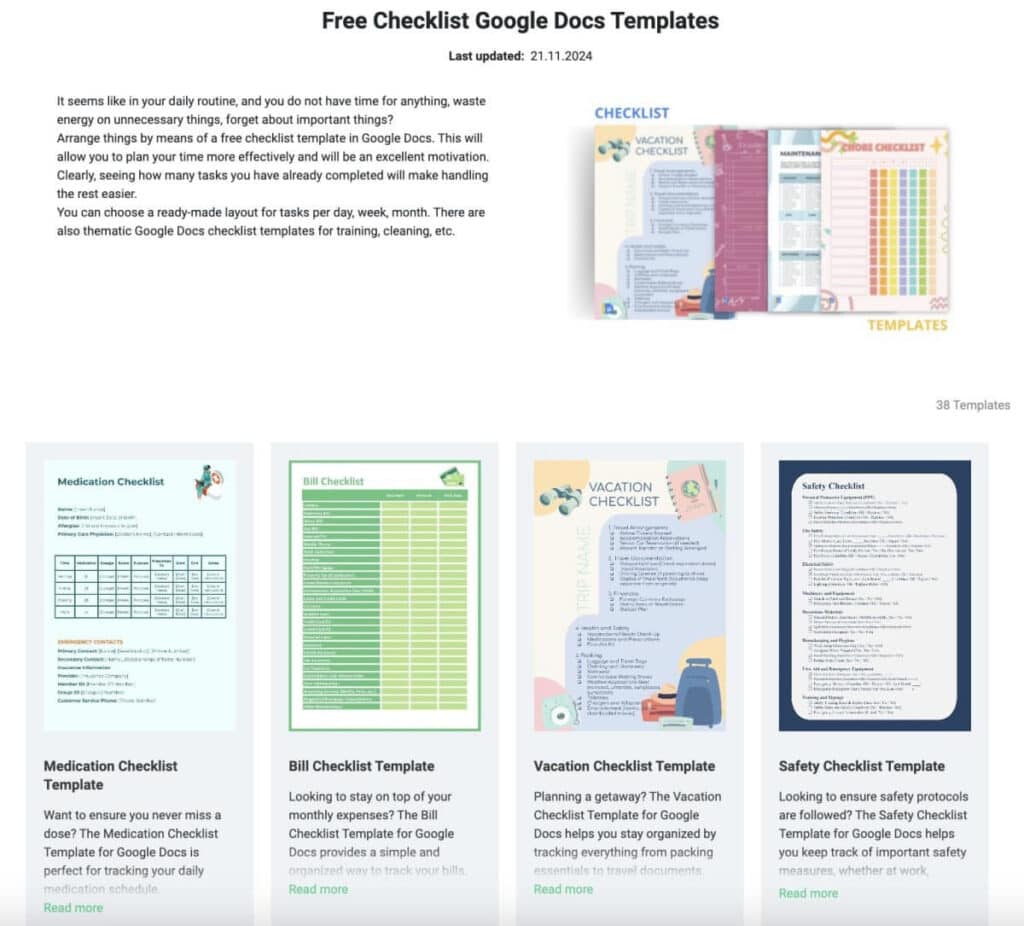
A workable checklist needs four columns and no more. Task, owner, deadline, and status cover the information a manager actually acts on, and anything beyond that goes stale quickly. The sample below is deliberately small, so it can be copied as a starting point and then steadily extended with rows specific to your own project delivery.
| Task | Responsible Team Member | Deadline | Status |
|---|---|---|---|
| Define project goals | Project Manager | Nov 27, 2026 | In progress |
| Identify key stakeholders | Team Lead | Nov 28, 2026 | Not started |
| Create project timeline | Assistant Manager | Dec 01, 2026 | Complete |
Extend this table with whatever tasks are unique to your delivery, and delete the sample rows once the real work is in place. Keeping one named owner per row matters far more than filling every column, because shared ownership is where accountability disappears once a project gets busy. Any project management fundamentals confirm the same rule: keep it short enough to scan easily.
Tips for Maximizing Efficiency with Google Docs Checklist Templates
A checklist that mirrors everything else on your plate stops being read within a fortnight. The difference between a document that survives a full project and one abandoned in week three comes down to four habits. Ranking honestly, dating every line, making status visible, and revising on a fixed rhythm all matter enormously here in practice.
Four simple habits keep any project checklist genuinely useful and alive:
- Prioritise Tasks Strategically: Not every line carries equal weight. Rank tasks by consequence rather than by the order they arrived, so work that blocks other people sits at the top of the list. Reviewing techniques for prioritising tasks regularly helps teams separate genuinely urgent items from work that merely arrived with a loud request attached to it. Review that ranking at least once a week.
- Set Clear Deadlines: A checklist without dates is a wish list rather than a plan. Assign realistic deadlines to every line, and where a date is genuinely unknown, say so explicitly rather than leaving the field blank. PMI research found 69 percent of projects met their original goals while 57 percent stayed within budget, and dated tasks are part of how that gap closes.
- Incorporate Visual Elements: Colour-coding or tags separate categories such as urgent, in progress, and blocked. This matters because it lets someone scanning the document identify what needs attention immediately without reading every single row, and visual grouping remains one of the few formatting choices that measurably improves comprehension across a busy team. Consistent grouping also speeds up handovers between shifts.
- Review and Update Regularly: Requirements shift constantly over the life of a delivery. A fixed weekly review to close completed rows, reassign stuck work, and delete items that no longer matter keeps the document trustworthy. The sequencing habits behind planning a project in stages apply here: a checklist trusted in week one and stale by week four misleads the people planning around it.
How Google Docs Checklist Templates Save Time and Resources
The value of a template is not the document itself but the decisions it removes. Every task you do not have to remember is attention available for work that actually requires judgement, and that is the mechanism behind the productivity claims made for templated planning. The effects below are the ones teams report most consistently after switching.
Three measurable effects show up repeatedly across almost every project team:
- Minimise Errors: Pre-built templates carry a sequence someone else already thought through, which reduces the chance of forgetting a required step. Comparing downloadable project plan templates before you start shows which sequences have already been refined.
- Speed Up Onboarding: A new team member can read the checklist to understand their responsibilities without waiting for a formal handover meeting, which shortens the time before they contribute real work.
- Increase Accountability: Shared access means every assignment is visible to the whole team, so ownership becomes explicit rather than assumed, and any drift shows up early enough to correct.
Advanced Tips: Going Beyond Basic Templates
Once the basic checklist works, the next gains come from connecting it to the rest of your tooling. Google Docs has quietly added several capabilities that make this easier than it was a few years ago, and none of them require leaving the document. These are worth adopting one at a time rather than all at once.
Three upgrades are worth making once the basic checklist works:
- Link to Resources: Embedding direct links to specifications, design files, and reference documents keeps the plan as the single entry point instead of forcing people to hunt through shared drives.
- Automate Progress Updates: A connected spreadsheet can pull status into the document rather than having it retyped. Writing the list to work with keyboard shortcuts for checklist items means it updates itself, so reporting stops being manual.
- Integrate With Project Tools: Connecting the checklist to a scheduling platform keeps the document as the everyday working view while the heavier tool handles dependencies and resource planning. The document stays the everyday source of truth.
Common Mistakes to Avoid With Project Checklists
Most failed project planning checklist efforts fail for the same handful of reasons, and almost none involve the software. The patterns below show up repeatedly in post-project reviews, and each one is cheap to avoid if it is recognised during setup rather than after a missed milestone. Treat them as setup checks rather than criticisms of the format itself.
The four common mistakes account for most abandoned project checklists:
- Letting the List Grow Without Limit: Every item added without removing one dilutes attention. Apply the same usability heuristics for complex interfaces that govern any interface: if a manager cannot scan the list in under a minute, it is no longer doing its job.
- Leaving Owners Blank: A task without a named person is a task nobody does. Shared ownership feels collaborative in planning meetings and produces silence when the deadline arrives.
- Treating the Checklist as the Schedule: A checklist tracks what to do, not when dependencies allow it. Where sequence genuinely matters, pair it with project planning workflows rather than forcing everything into one document.
- Failing to Archive Finished Work: A completed project left in the same file as live work makes current status harder to read. Archive finished checklists the way milestone tracking templates archive closed milestones, then start clean.
Conclusion: Your Next Step Towards Foolproof Project Plans
Google Docs checklist templates work because they lower the cost of writing down what was agreed. They are not a scheduling engine, and they will not model dependencies, but they keep ownership and deadlines visible in a document the whole team already opens. For most delivery work, that is the difference between a plan that exists and a plan that is followed.
Start with scope, choose a suitable one from project management templates that match the shape of the work, name an owner for every line, and book a weekly review before the project begins. Keep the list short enough to scan and archive it the moment the work finishes. Done that way, the checklist stays a working tool rather than another document nobody opens after the kickoff meeting.
Frequently Asked Questions About Google Docs Checklist Templates
What is a Google Docs checklist template?
It is a pre-formatted document containing tickable checkbox items that a team can share and edit at the same time. Most templates include task rows, an owner column, and a deadline field. The format suits project planning because the checkboxes give a visible record of progress without requiring any separate software or licence. Choose one that already matches your delivery style.
How do I add checkboxes to Google Docs?
Place the cursor where the item should appear and insert a checkbox from the Insert menu, or type two square brackets to trigger the shortcut directly. Pressing Enter after a checkbox creates another one automatically, which makes building a long task list remarkably fast once you know the pattern. Consistent indentation keeps nested steps readable.
Are Google Docs checklist templates suitable for large projects?
They work well at the task level but strain as a single source of truth for complex delivery. Large programmes need dependency modelling, resource levelling, and critical path analysis, none of which a document provides on its own. Most teams end up pairing the checklist with a scheduling tool as the project grows. The checklist then tracks tasks rather than whole workstreams.
What should a project checklist include?
At minimum, a task description, a single named owner, a deadline, and a status value. Anything beyond those four columns tends to go stale within a week. Keep each row to one deliverable, and delete placeholder rows that shipped with the template so nobody chases work that was never in scope. Four columns is usually the practical ceiling.
How often should a project checklist be reviewed?
Weekly works for most delivery projects, with an additional pass at each milestone boundary. The review should close finished items, reassign anything stuck, and delete work that no longer matters. A checklist trusted in week one and stale by week four actively misleads the people planning around it. Set that rhythm before the project starts.
Suggested articles:
- Project Plan Template For Word Explained
- 4 Free Project Planning Templates For Better Project Management
- 5 Project Planning Examples Across Industries

Daniel Raymond, a project manager with over 20 years of experience, is the former CEO of a successful software company called Websystems. With a strong background in managing complex projects, he applied his expertise to develop AceProject.com and Bridge24.com, innovative project management tools designed to streamline processes and improve productivity. Throughout his career, Daniel has consistently demonstrated a commitment to excellence and a passion for empowering teams to achieve their goals.